Write a Halloween greeting, compare eight copyable text styles and export a branded PNG in six sizes with seven original background choices.
Make your Halloween greeting
Start with the words, decide what to copy, then finish the image separately.
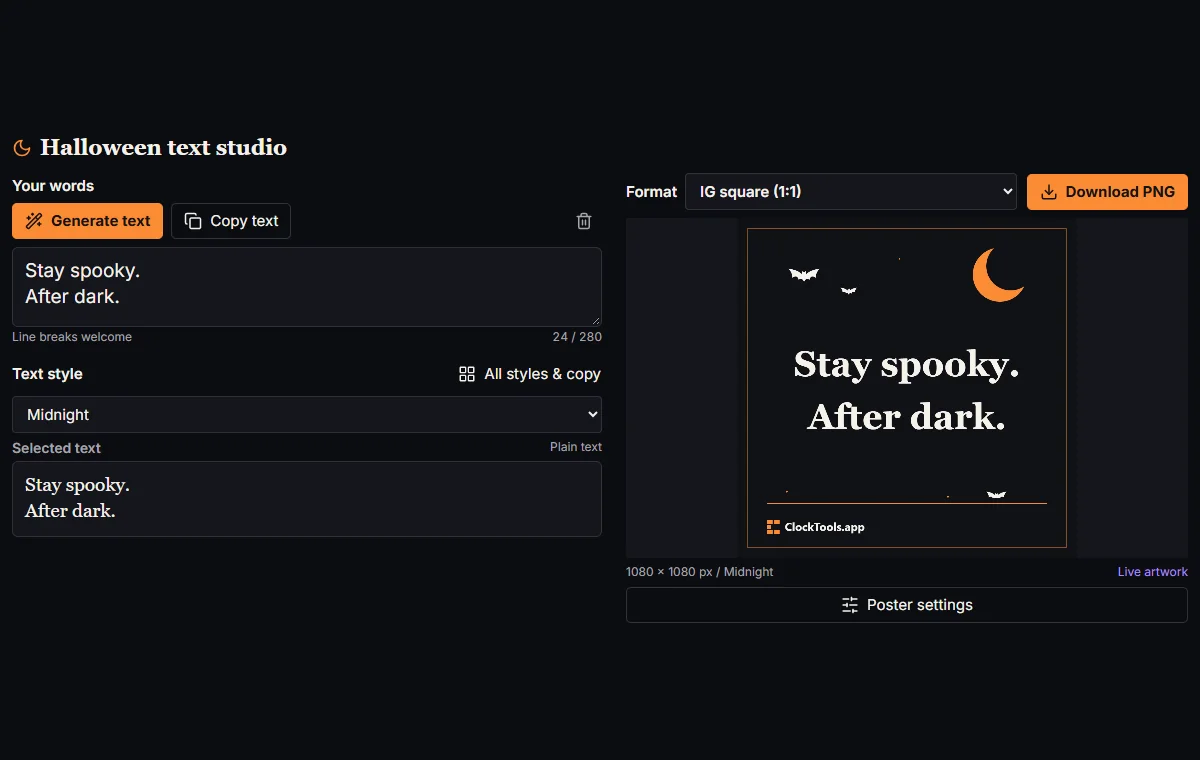
Write or generate a caption
Enter your message with intentional line breaks, or use Generate text for a short local suggestion. Check names, dates and event details before decorating.
Choose a text style
Use Text style and inspect Selected text. Copy text transfers that result; All styles & copy compares all eight options and provides individual copy controls.
Finish and save the poster
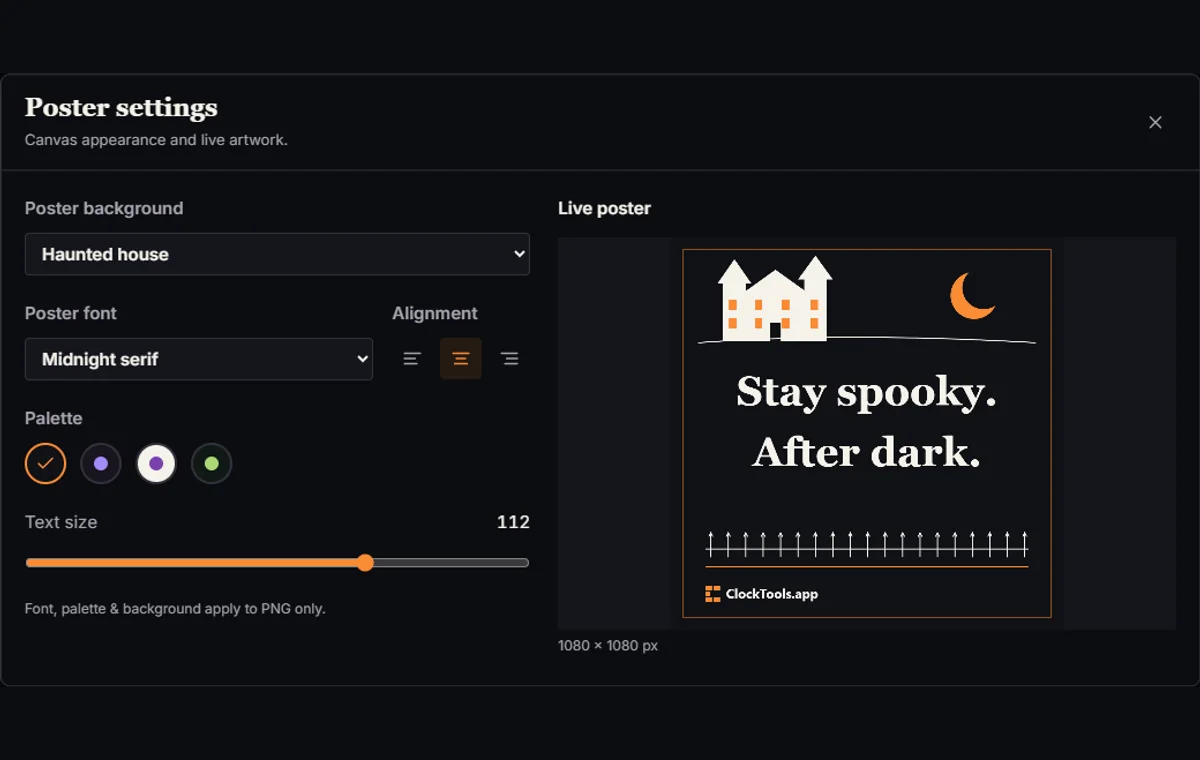
Choose Format, open Poster settings and adjust the scene and typography. Inspect the live artwork, then use Download PNG for the actual branded image.
Three practical starting points
A front-door party invitation
Use a short event title, a readable serif or headline font and a portrait format. Put the full address and reply details in the accompanying plain-text invitation, rather than crowding the artwork.
A social greeting with a readable companion
Choose a caption, compare the decorated and ordinary versions, then create a square or vertical PNG. Keep the message in the post's normal caption too, and inspect the destination crop before sharing.
Table labels and costume-night signs
Write a few specific words, try Plain or a playful scene, and export the matching shape. Place the PNG in your document without stretching it; review the physical layout before printing.
Decorated characters are not installed fonts
Separate characters from font formatting
Text style changes the characters you copy; Poster font changes only the image. Midnight keeps ordinary text. Gothic and Shadow bold replace supported Latin letters with mathematical characters, while Full moon replaces basic ASCII letters, digits and punctuation with full-width forms. Accented letters and Cyrillic do not have matching replacements in those mappings. They are not transliterated, so a mixed-looking result can be expected.
Unicode's mathematical character report describes alphabets used in mathematical notation. Its presentation-form FAQ cautions against using these alphabets as ordinary styled prose. In this studio they are optional decorative effects, not substitutes for real font formatting. For an event name that must be read, searched or copied reliably, keep a normal-text version alongside the decoration.
Understand spacing, frames and marks
Whisper inserts spaces between grapheme groups; Starlit adds stars around nonempty lines; Grave marker uses ASCII framing. Haunted adds at most two combining marks per eligible grapheme rather than an unlimited stack. These are different strings, not merely different appearances. Search, speech output, spellchecking and character limits in another app may treat them differently. Test the destination rather than assuming identical behavior.
Copy styles and use the fallback
Copy text uses the selected style, including your line breaks. All styles & copy lets you preview or copy another style without losing your source. If clipboard access is blocked, a selectable manual-copy field appears on the active surface. Inside the gallery it stays inside the dialog, so keyboard users need not leave its focus boundary to retrieve the result.
Build a hierarchy that survives a small preview
System fonts and missing glyphs
Poster settings contains three system-font choices: Midnight serif, Horror headline and Typewriter. They are drawn into the PNG, not installed on the recipient's device and not attached to copied text. The browser may use a fallback when a named font or a particular glyph is unavailable. Check the exported image on the device that will display it, especially when combining accented text with decorative symbols.
Hierarchy, alignment and automatic fitting
Start with one clear headline and a second line only when it adds information. An illustrative invitation might read Halloween supper followed by 31 October · 19:00; the example is not a live event. Give the date, place and reply instructions ordinary spelling in the accompanying message. Several competing decorative styles do not create hierarchy as effectively as a concise title and deliberate line breaks.
Center alignment suits a short, balanced greeting; left alignment can make several information lines easier to scan. Right alignment works best when the short composition still reads naturally. Text size sets a reference starting size: automatic fitting can reduce it to keep the whole message within the artwork. A larger slider value therefore does not promise larger final text when the content is already too long.
Keep essential information as real text
The W3C explanation of images of text emphasizes the flexibility of real text. Treat the PNG as an illustrated greeting, not the only copy of essential information. Keep addresses, dates and names available as ordinary text. Decorative Unicode is not an accessibility setting, and this tool does not certify pronunciation, screen-reader support or legibility for every viewer.
Choose the actual output size before finishing the layout
Preview size versus export dimensions
Format selects a real canvas size, not a stretched square. The six choices below are useful starting formats; names containing IG or Pinterest do not promise acceptance, reach or identical cropping on every placement. Select a shape for the intended composition, then inspect it in the app or document where it will be used.
The on-page preview is limited to 340 pixels high, so a story can look small while still exporting at 1080 × 1920 pixels. Changing format recalculates the space around the text and illustrations. Artwork scales uniformly, with extra room along the long axis rather than distorted lettering or flattened silhouettes. Dimensions are pixels, not a guaranteed printed size.
Internal margins versus platform crops
The central text area is protected from the illustration, and the ClockTools.app logo and website occupy a separate footer band. Those are internal design margins, not a guarantee about a social app's overlays or crop boundaries. Keep important details away from the edges and check any destination preview, especially when placing a tall image inside a square thumbnail.
Preserve proportions when placing the image
If a destination cuts off the greeting, change the placement or export a more suitable shape instead of stretching the file. Recheck the line breaks after each format change. When placing the PNG in a document, preserve its aspect ratio and review the actual print layout. The tool has no direct publishing or printing action.
| Preset | Pixels | Ratio | Useful starting composition |
|---|---|---|---|
| IG square | 1080 × 1080 | 1:1 | A short greeting or compact invitation |
| IG portrait | 1080 × 1350 | 4:5 | A title with a little more vertical room |
| IG tall | 1080 × 1440 | 3:4 | A taller portrait composition |
| IG story | 1080 × 1920 | 9:16 | A vertical greeting with generous space |
| 1000 × 1500 | 2:3 | A portrait image for a saved idea or invitation | |
| Landscape | 1920 × 1080 | 16:9 | A wide title or screen display |
Use scenery and contrast without burying the message
Choose a scene and palette together
Poster background offers Moon & bats, Haunted house, Pumpkin patch, Cobweb corners, Friendly ghosts, Potion shelf and Plain. The illustrated scenes frame the message rather than cover its central area. Plain removes the scene but keeps the border and website branding. Choose a mood that matches the audience instead of relying on decoration to explain what the event is.
The four palettes are Ember, Violet, Bone and Potion. Each changes the canvas background, lettering and accent colors together. A friendly scene with the light Bone palette can give a different tone from a dark house scene, even with identical words. Compare the full greeting, including the small symbols, rather than choosing a swatch in isolation.
Resolve crowded text
Long text wraps between words and, where necessary, at grapheme boundaries. The renderer measures the lines and reduces the starting size until they fit; it rejects a message that still cannot fit rather than silently exporting cropped body text. Shorten it, remove unnecessary blank lines, try another format or choose a less expanded text style. Copying text remains available when only the poster is too crowded.
Clear the draft or choose a caption
Clear text empties the draft and disables empty copying and PNG export. Generate text chooses from 48 short captions in the page language and avoids repeating the current or last generated caption immediately. It is a local phrase collection, not an open-ended writing service. Edit a suggestion to add your own occasion; repeated requests can eventually return earlier captions.
Take inspiration from greeting cards, not a mythical single Halloween font
Read the postcard evidence
The Henry Ford's record of a 1908 postcard carries a Halloween date in 1909. This is a concrete example of a seasonal greeting moving between people, rather than evidence for one timeless lettering style. For a present-day invitation, the useful design question is similarly practical: can the recipient tell what is being celebrated and what to do next?
A second museum postcard, dated around 1910, includes a witch and a jack-o'-lantern. Those collection records ground the connection between seasonal imagery and greetings without establishing an exact origin for every modern motif. The studio's scenes are original drawings, not reproductions of those cards, and the page does not claim historical authenticity for their type.
Distinguish modern labels from historical lettering
The label Gothic in this tool refers to its mathematical letter substitutions, not a complete historical blackletter font. Typewriter and the other poster fonts are present-day system-font choices. Borrow a broad design principle, such as a bold headline separated from supporting information, without treating a Unicode alphabet as a facsimile of a printed artifact.
Match the mood to the audience
For a family party, a pumpkin or friendly-ghost scene can keep the invitation playful. A darker palette and a house scene can set a different tone for an evening gathering. In either case, the seasonal imagery works best as a frame for the greeting. Put the reader's information ahead of visual imitation.
Prepare a greeting people can actually use
Check the event facts
Before styling, write the facts the recipient needs: the event name, date, local time, place and how to reply. Check them yourself; the generator does not validate addresses or interpret a date as a calendar event. For a small label, keep the wording short. For an invitation, let the poster carry the headline while an ordinary message carries the details.
Compare text and poster styling
Generate text is useful for a starting caption, while your own words make a table label or costume-party sign specific. Compare a restrained style with the decorated version in All styles & copy. Poster settings can then change the background, font, palette, alignment and size while showing live artwork. The permanent ClockTools.app footer is part of every exported image and has no removal switch.
Choose text copying or PNG export
Copy text and Download PNG serve different purposes. The first transfers the selected characters; the second saves the actual canvas artwork at the chosen resolution. The W3C guidance on text alternatives supports keeping the image's words available to readers who cannot see it. When sharing, supply an ordinary caption or appropriate alternative text that matches the real greeting rather than merely describing its color.
Keep the draft and handle failures
The working draft is kept in the current page, with no tool autosave or account required. Refreshing or leaving can lose it, so keep the words or downloaded image before moving on. A blocked clipboard has a manual fallback; an unavailable canvas or failed PNG encoder does not create a successful download. Try a supported browser or copy the message while keeping the source intact.
Method, limits and corrections
Method
Character transformations and poster rendering happen in your browser. Generate text selects from 48 locally available captions in the chosen language; it avoids immediate repeats, not every repeat forever.
The input limit is 280 grapheme groups, with an additional size guard for unusually long combining sequences. Newlines are retained; tabs and unsupported control characters are cleaned. The canvas measures text, wraps it, fits it inside a protected area and draws the website footer separately.
Limitations
Latin substitutions are not a full multilingual font or a transliteration system. Glyph support, pronunciation and appearance depend on the destination and available system fonts. The 340-pixel preview is not the export resolution.
A format preset does not guarantee platform compatibility, a safe crop, print dimensions or accessibility. Empty or unrenderable artwork cannot be exported. The tool does not save drafts across reloads.
Report a problem
If a result is wrong, compare it with Midnight first, shorten it and recheck the selected format. For a report, include the page language, browser, text style, background and a non-sensitive example. Describe whether the problem is in copied characters, the preview or the downloaded PNG; never include private invitation details unnecessarily.
Questions about Halloween text and posters
Does Copy text include the poster font and colors?
No. It copies the selected character string, including supported decoration and your line breaks. Poster font, palette and background change the PNG only. Use Download PNG when you need the visual composition rather than editable text.
Why do Cyrillic or accented letters look unchanged in some styles?
Gothic, Shadow bold and Full moon map specific basic Latin or ASCII characters, not every writing system. They do not transliterate Russian or remove accents. Choose Midnight or a framing style for more consistent text, or use the actual poster font.
What happens when the clipboard is blocked?
A read-only field appears with the requested result selected for manual copying. In the gallery, that field stays inside the dialog. Your source is not deleted, and you can close the popup and continue editing.
Is the PNG a screenshot of the web page?
No. It is the actual artwork canvas, with your selected text, settings, scene and ClockTools.app footer. Interface buttons and dialogs are not part of the downloaded image. The chosen preset determines the canvas's pixel dimensions.
Are the IG and Pinterest sizes platform requirements?
They are useful named presets, not universal publishing rules. The tool exports the listed dimensions exactly, but the destination can crop, resize or place controls over an image. Check its preview and choose another aspect ratio when necessary.
Why does long text become smaller or stop exporting?
Automatic fitting reduces the reference size to keep complete lines inside the text area. Too many lines or unusually large glyphs can still fail. Shorten the message, remove spare blank lines or change format; text copying can remain available.
Are my draft and generated captions saved?
The tool keeps the current draft in the page, not an autosaved account document. Reloading can lose it. Caption selection and image rendering run locally, but downloading or posting a file is a separate action under your control.
Can Generate text produce unlimited unique greetings?
No. It chooses from 48 short captions available in the page language and avoids the current or last generated caption immediately. Earlier choices can return. Edit the text yourself to add names or an original message.
Can I hide the ClockTools.app footer?
There is no setting to omit it. The logo and website are permanently drawn in a reserved footer band on every PNG, including Plain and all six formats. They are not added to the character string copied with Copy text.