Create a pumpkin carving stencil with faces, lettering and bridges. Check disconnected areas, export SVG or PNG, and print at actual size on A4 or Letter.
From a face to a paper pattern
Compose on the pumpkin, then inspect the flat stencil before transferring it to the real surface.
Choose and arrange
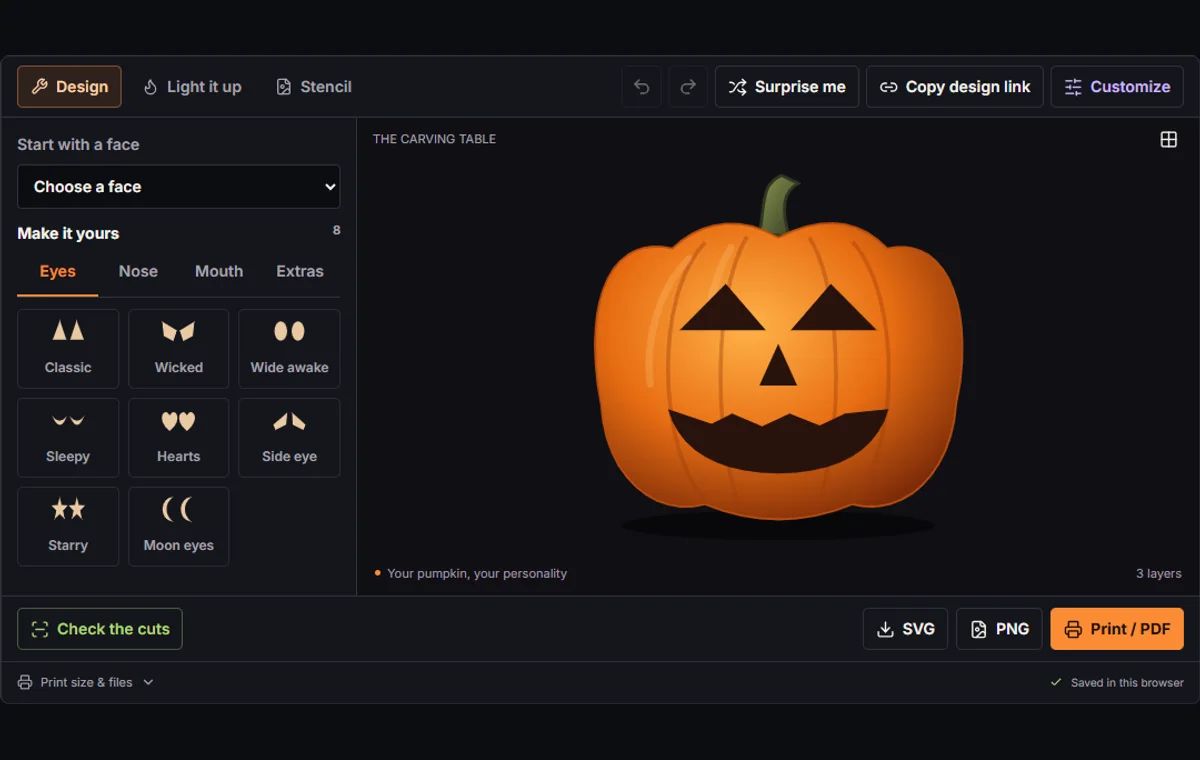
Start with a face. Change eyes, nose or mouth, add extras, and use Customize for lettering, layers and transforms.
Review the material
Switch to Stencil: black is removed and white stays. Check the cuts, inspect any islands and add or adjust bridges.
Measure and print
Set a width from 75 to 330 mm and choose A4 or Letter. Print at 100%, measure the 50 mm ruler and align tiled sheets.
Three practical starting points
A first family pumpkin
Use The classic with large, separated features. Children can choose expressions and trace the pattern; an adult handles cutting. Skip tiny extras on a small pumpkin.
A short name or greeting
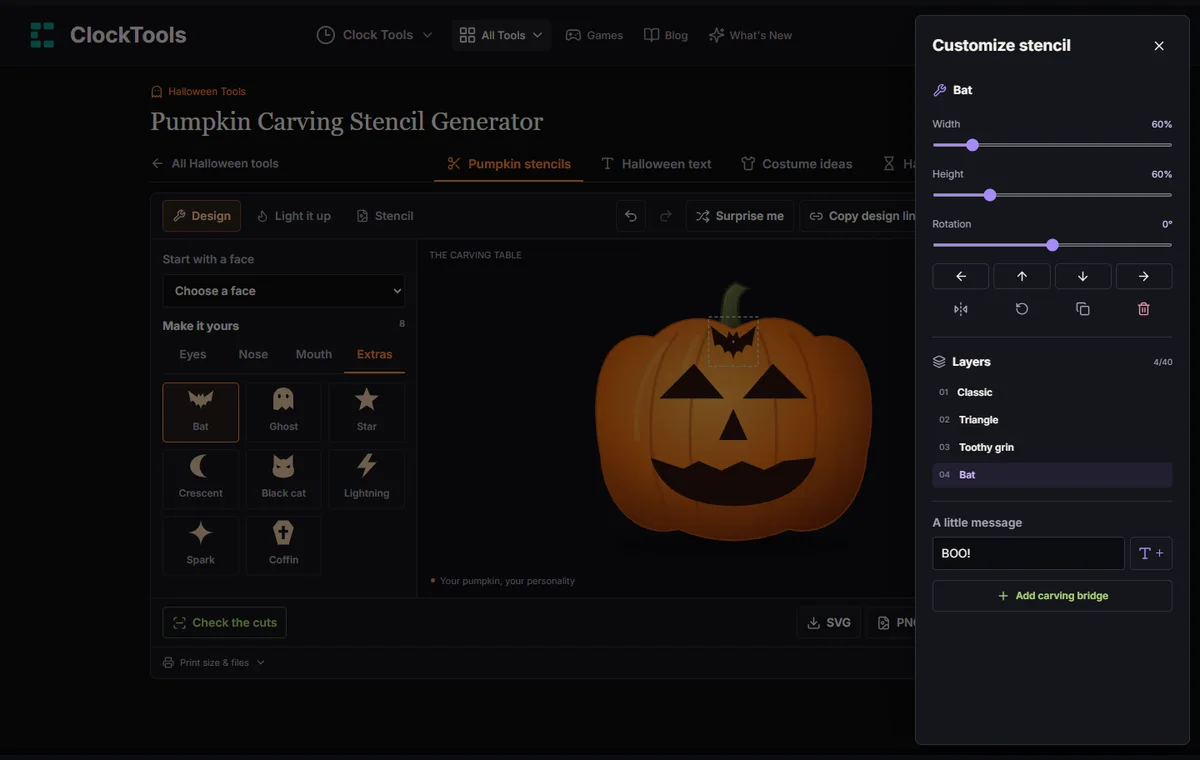
Add lettering in Customize, then enlarge it and inspect the enclosed spaces in letters. Keep a JSON copy before adding bridges so you can compare versions.
A coordinated doorway display
Save one face as a design, change its expression for the next pumpkin and print each at its own measured width. The glow view is a visual comparison, not a brightness prediction.
Read the pattern as material, not ink
Read the cut-and-keep legend
In Stencil view, black means cut out; white means keep. On the pumpkin preview those same cut areas appear dark, or bright in the glow view. The preview is an illustration: it does not model the thickness, ribs or exact outline of your pumpkin.
Replace features or add layers
Choosing another eye, nose or mouth replaces the first existing piece of that category. Extras, lettering and bridges add layers instead. Drag a piece to position it, or select it and use Customize to change width, height, rotation or horizontal flip. Separate width and height controls can deliberately stretch a shape.
Leave material between openings
Judge the gaps between features as carefully as the features themselves. Two attractive cut-outs can leave a very narrow strip when placed close together. Start with a broad face, leave generous white space, then add detail only if it remains readable at the intended print size. Undo and Redo help compare edits; a saved JSON file keeps a version beyond the current editing session.
Lettering, negative space and the BOO example
Recognize enclosed counters
A letter is not always one solid cut-out. The enclosed white spaces inside letters such as B, O, A or R are called counters. If you cut out the surrounding black stroke completely, a counter becomes a loose piece of material. A ghost's eyes or the cross inside the coffin can create the same problem.
Bridge every enclosed area in BOO
Try BOO as a worked example. Add it in Customize and switch to Stencil. The two spaces inside B and each O may need connections to the surrounding white material. Add a white bridge across a black stroke, position it so it reaches both sides, and widen or rotate it as needed. Repeat for every enclosed region rather than assuming one bridge fixes the whole word.
Distinguish cut-outs from engraving
This tool makes black cut-out lettering, not an automatic outline or engraving pattern. To preserve a white letter silhouette, you would need a different surrounding cut arrangement and supporting connections. Keep a greeting short: text is fitted to a fixed text box, so a longer phrase produces narrower letters. The browser's serif font can also change the exact letter shapes.
| Feature | Likely issue | Possible edit |
|---|---|---|
| B or O counter | White center becomes detached | Connect each center with a white bridge |
| Long greeting | Thin strokes and crowded letters | Use fewer characters or enlarge the text |
| Very small gap | Little material remains between cuts | Move features apart or simplify |
What the cut checker can and cannot tell you
Read the sampled connection check
Check the cuts examines retained white areas in a sampled flat preview and looks for connections to the surrounding material. It reports enclosed areas that appear disconnected. Tiny details may be missed, and a diagonal touch alone is not treated as a usable connection.
Position bridges and check again
A report identifies a possible material island, not a carving instruction. Suggested bridges offer straight connections toward surrounding white material. They are starting points, not an optimized support structure; some islands have no available suggestion. Manual bridges remain available in Customize, so you can choose a different position or angle when a suggestion does not suit the design.
Bridges are white strips that interrupt black cut-outs to keep material connected. Their position, width and angle determine which part of the opening stays intact. After adding or moving one, run the check again and inspect the flat pattern at print size. A bridge that only touches a corner, misses its target or erases a key detail needs adjustment.
Assess the actual pumpkin separately
No disconnected areas found is advisory, not a physical safety or strength guarantee. The check does not measure narrow necks, tiny cuts, blade access, fruit curvature, damaged skin or wall thickness. Simplify delicate detail even when the report is clear, and let the adult doing the cutting decide whether the pattern suits the actual pumpkin.
Print at actual size and transfer without stretching
Measure and choose the stencil width
Stencil width refers to the full square design area, not just the face's visible features or the pumpkin illustration. Choose 75–330 mm in Print size & files. A 180 mm pattern therefore has a 180 mm square design area; a face occupying only part of it will be narrower. Measure the usable front of your pumpkin before deciding.
Print and verify the scale
Choose A4 or US Letter in the tool and the same paper in your print dialog. Use 100% or Actual size, not Fit to page. First measure the printed 50 mm scale check with a physical ruler. If it measures 45 mm, the page was scaled to 90%; correct the print settings and reprint rather than treating the on-screen size as proof.
Join overlapping tiles
Large patterns split into numbered tiles, up to a 2 × 2 layout at the maximum width. Adjacent tiles repeat 8 mm of the design. Match the repeated shapes, trim a margin if necessary and tape the sheets together; do not simply butt the paper edges together. Check alignment across every seam before transferring.
Transfer onto the curved surface
Paper is flat and a pumpkin is curved. Place the joined pattern on the intended face, secure its center, then use small relief folds or slits in blank paper where needed so the design does not stretch. Trace the outlines or transfer them with your preferred method. Review every retained bridge on the pumpkin itself before an adult starts cutting.
| Output | Best use | Important detail |
|---|---|---|
| Print / PDF | Measured paper pattern | 100% scale; 50 mm ruler; A4 or Letter |
| SVG | Scalable artwork | 400 × 400 design plus separate brand footer |
| PNG | Image sharing or a reference copy | 1600 × 1728 pixels including the footer |
| JSON | Continue editing later | Design data, not a printable image |
From turnip lanterns to pumpkin faces
Follow the documented lantern traditions
The Library of Congress connects jack-o'-lantern traditions with Irish stories about Jack and carved turnip lights. Folklore is not evidence of a single inventor or an exact invention date.
Smithsonian Gardens describes pumpkins as a more available, workable material for Irish immigrants in America. The National Museum of Ireland preserves a model of a turnip lantern associated with Donegal.
Adapt the pattern to the material
For a modern stencil, that change of material is a useful design lesson: a face is not independent of its surface. A pattern that looks convincing on a broad pumpkin preview may be cramped on a smaller, deeply ribbed fruit. Adapt the scale and spaces rather than trying to reproduce the screen literally.
Make the design stage a shared family activity
Share design roles on paper
Separate choosing a face from cutting it. One person can choose the eyes, another the mouth, and another compare the paper view. Print a draft to discuss which white sections must remain connected. A paper exercise also makes negative space understandable without putting a cutting tool in a child's hands.
Prepare a simpler backup
For a short session, prepare one large-featured design and a simpler backup. Give each participant a turn with the preview, then save the agreed version before experimenting again. A small pumpkin may suit marker decoration better than intricate cut-outs; the stencil can still serve as a drawing reference.
Adult cutting and battery lighting
The CPSC's pumpkin-carving guidance assigns cutting to adults and recommends battery-operated lights instead of open flames. Use an LED light for the finished display; the glow preview is decorative, not advice to put a candle inside. Keep the working area stable and uncluttered, and stop if the chosen design proves too delicate.
Save an editable design and share deliberately
Browser storage is not a backup
The editor attempts to save the current design in this browser. That is not an account backup or synchronization service: another browser, private browsing, cleared site data or blocked storage can remove access. If saving is unavailable, continue editing and download JSON. A malformed existing saved design is left untouched instead of being silently replaced.
Design files versus finished images
Save design downloads the editable version-1 JSON structure. Open design accepts a valid ClockTools stencil JSON file below 25 KB with no more than 40 layers. SVG and PNG are finished images, not editable design imports. Both image exports place ClockTools.app outside the 400 × 400 carving square, so the footer does not become a cut-check island.
Share links with privacy in mind
Copy design link explicitly puts compressed design data, including its name and lettering, in the URL fragment. Anyone who receives that complete link can recover the design; compression is not encryption. The editor does not upload the design as a sharing step, but a link can still be stored by browser history or a messaging service. Do not include private information. If clipboard access fails, select and copy the displayed link.
Method, limits and corrections
How the pattern is made
The pattern combines editable shapes, text and white bridges. Black areas represent openings; white areas represent material to retain. The cut check examines retained areas in a sampled flat preview and suggests connections where possible. Tiny details and narrow supports still need a visual review.
Print pages use millimeter dimensions, a 50 mm ruler and 8 mm repeated tile regions. The selected width is limited to 75–330 mm. Print / PDF opens the browser's print workflow; PDF availability and scaling depend on that browser and printer settings.
Practical limits
This is a flat pattern planner, not a structural simulation, cutting machine file validator or safety certification. Small disconnected regions may be missed; narrow connections may pass. Curvature, wall thickness, tools and font substitution can change the practical result.
Browser storage and clipboard access may be unavailable. Keep an editable download, inspect the final paper pattern and leave cutting to adults. Use battery-powered LED lighting rather than an open flame.
Fixing a problem
For a detached center, add or reposition a bridge and check again. For fragile detail, enlarge the pattern, separate features or remove the detail. For the wrong paper size, correct the print dialog and remeasure the ruler.
If an import fails, keep the original file and open a valid stencil JSON export; renaming a PNG or SVG to .json will not convert it. When reporting a problem, include the chosen paper, width and browser, but remove private names or lettering from any shared design.
Pumpkin stencil questions
Do I cut out the black or white areas?
Cut out black areas and retain white areas. White bridge rectangles deliberately interrupt black shapes to keep material connected. Check the paper view, not just the illuminated illustration.
Why does the checker flag the middle of a letter?
The white center of an O, B or similar letter can become disconnected when its black outline is removed. Connect every enclosed center to surrounding white material with a suitable bridge, then check again.
Does a clear check mean the stencil is safe to carve?
No. It only means no qualifying disconnected white regions were found in the sampled flat image. Very small cuts, narrow supports, curved skin and wall thickness still require practical judgment.
How do I print the exact size or save a PDF?
Choose a width and paper size, then open Print / PDF. Select 100% or Actual size and, if available, your browser's PDF destination. Measure the printed 50 mm ruler before transferring the pattern.
How do the tiled sheets fit together?
Tiles show their column and row and repeat 8 mm of adjacent artwork. Align the repeated design, trim excess blank margin if needed, and tape the sheets together. At 330 mm the layout uses four sheets.
Can I reopen a PNG or SVG in this editor?
No. Save design creates the editable JSON file; Open design reads that format. SVG is scalable artwork and PNG is a 1600 × 1728 image including the branding footer.
Is my design saved or shared automatically?
The editor attempts local browser saving, not cloud backup. Sharing requires Copy design link. That link contains the design name and lettering, so anyone with the complete link can open it.
Can children use the stencil?
Children can help choose, draw or trace a design with adult supervision. Adults should do the cutting. A marker-only pumpkin is another option, and battery-powered LED lighting avoids an open flame.
Why does my long message look squeezed?
Lettering fits into a fixed text box. More characters make the letters narrower, and the browser may use a different serif font. Shorten the message or increase its width, then inspect the counters and gaps again.