Your login keeps failing
A working homepage does not prove that sign-in works. Select the service, check its login component and read the incident update before resetting a password or clearing useful browser data.
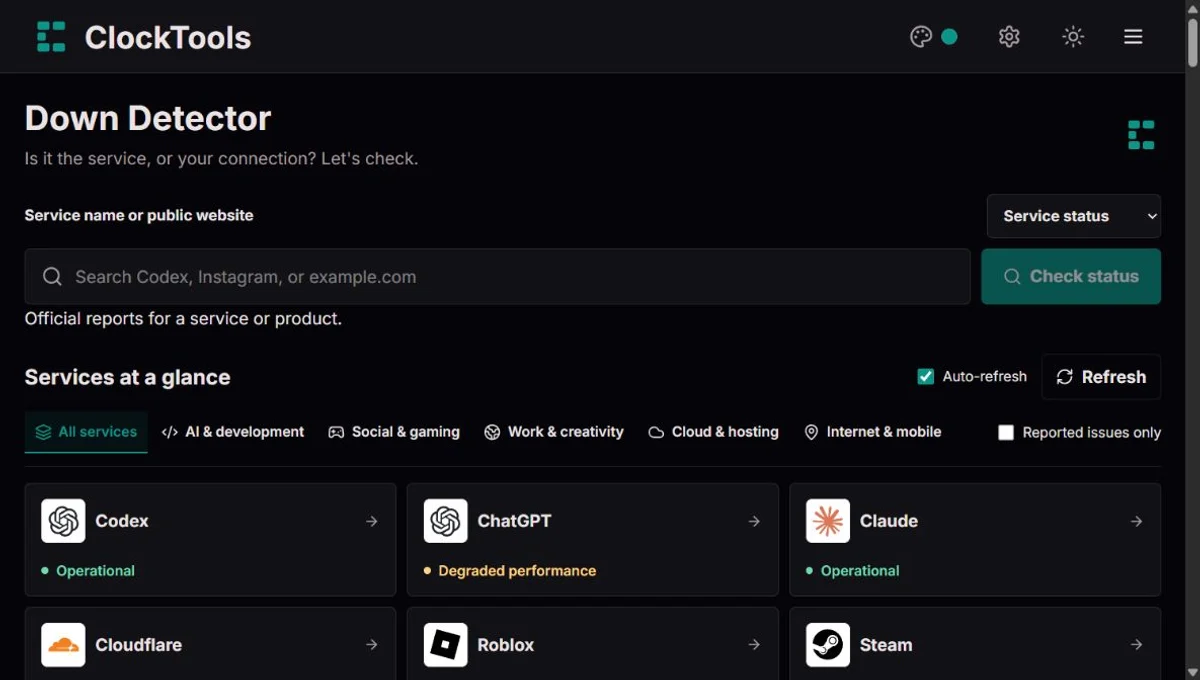
Is it the service, or your connection? Let's check.
Start with the service you use, then look at the evidence that matches your problem. You do not need to read every chart to decide what to try next.
Use Service status for a supported app, or Website check for a public address. These answer different questions: what the provider reports, and whether that particular page responds.
Read ongoing incidents first. Open Components to check login, uploads, an API, or another named feature. The latest incident update can narrow down who is affected.
Refresh before making a decision. Copy or download a dated report for support; share the link when someone needs a fresh check rather than a saved result.
A working homepage does not prove that sign-in works. Select the service, check its login component and read the incident update before resetting a password or clearing useful browser data.
Look for matchmaking, messaging or app-specific incidents. If the provider has not reported a problem, compare Wi-Fi with mobile data where possible. One device failing is not evidence of a worldwide outage.
Choose the actual product, not just its parent company. Check the affected component and error time, then retain a report alongside your own request ID. Never paste an API key or a signed URL here.
Read the latest update and maintenance window before retrying. Avoid repeatedly submitting a payment or upload: a delayed response does not necessarily mean the first attempt failed.
Choose the check type before searching. Pin up to five services in this browser, filter the directory by category, or show only reported issues. Auto-refresh applies to official feeds while this page is visible; a website check runs once. Component search helps you find the feature or region you use. Copy a report to preserve its observation time, or share a link for someone else to open a fresh view. PNG, text and JSON downloads contain the available evidence, not a prediction of recovery.
A service is more than its homepage.
The page you first open may be served separately from accounts, search, messaging, file storage or payment processing. That makes partial outages possible: a public page loads normally while the action you actually need cannot complete. A green website check and an affected service component can therefore both be correct.
Our Down Detector keeps those views separate. A service status describes the provider's published information; a website check describes one public address at a recorded moment. Neither is a test of your private account, an authenticated checkout or every region. When the two disagree, use the incident description to identify the affected feature rather than treating one badge as the final answer.
For a deeper explanation of symptoms versus causes, Google's guide to monitoring distributed systems describes why an external result and an internal service measurement can reveal different parts of a problem.
Incident updates tell a story, not just a colour.
Investigating usually means a problem is being assessed. Identified indicates that the provider has narrowed down its cause. Monitoring means a change has been made and its effect is being watched; it should not automatically be read as a promise that everyone has recovered. Resolved is the provider's closure of the incident, while a later postmortem may explain what happened and what will change.
Updates can arrive after users first notice a failure, and individual sessions may recover at different times. We show the latest available update, the affected components when supplied and separate ongoing incidents from recent history. A maintenance window is shown separately because planned work is not the same as an unexpected outage. If an incident is not assigned to a product, we flag that uncertainty instead of declaring the whole product down.
You can compare this information with the provider's own record; for example, Cloudflare's public status documentation distinguishes incidents, component states and scheduled maintenance.
Read the response before choosing the remedy.
Not necessarily. A 404 response can mean that a specific page has moved, even though the rest of the website works. A 403 response can reflect access restrictions or automated-request protection. A server error, missing DNS answer or timeout is stronger evidence of a problem on that request, but still does not establish a worldwide outage or its cause.
If only one address fails, try the site's homepage. If several unrelated sites fail on your device, check your connection and compare another network. If the homepage works but one action fails, look at service components and the exact error message. Keep the time, affected action and result for support, without sharing passwords, session cookies or private links. Repeatedly refreshing rarely adds evidence; a fresh check after the next provider update is usually more useful.
When a response code needs context, MDN's HTTP status reference explains the distinction between successful responses, access errors and server errors.
Illustrative example, not live service data
Suppose a provider publishes eight incidents in a month. Seven are brief and resolved; one began five days ago and remains ongoing. A simple newest-first list could hide that older incident, so our ongoing list keeps it visible regardless of age. The history chart counts records by their start date, not the number of people affected, hours of disruption or customer reports. Eight records do not tell you whether availability was 99% or 99.9%: that calculation needs a defined service, an observation period and measured unavailable time. An empty day means no incident start was found in the available feed, not proof that every feature worked perfectly.
An official status feed tells us what the company has acknowledged about its services. A website check tells us whether one public URL answered an external request. We keep these signals separate: a homepage can work during a login incident, and a security challenge can block our check while the app works for you.
The connected provider feed lists the service as operational. An individual account, feature or region can still have a problem.
If it still fails for you, compare another network and device before changing your settings.
The provider reports reduced performance, such as slower requests or intermittent errors.
Check the affected component and incident notes. Avoid repeatedly submitting payments or other important requests.
Part of the service is reported unavailable; other components may still work.
Match the affected component to the feature you need, then follow the provider's updates.
The feed reports a major outage within the service or components we cover, not necessarily every product the company offers.
Use an alternative if the task is urgent. Check the official incident for recovery updates.
The provider has marked a component or service as under maintenance.
Read the maintenance notice for its scope and schedule. A planned end time is not a recovery guarantee.
An active incident is listed, but the available feed may not specify its full severity.
Open the official incident to see which features are affected and what the provider recommends.
The connected incident feed lists no active incident. This is different from a successful test of every feature.
Compare the result with the feature that is failing. A new issue may not have been acknowledged yet.
We could not verify the feed, or it does not provide enough information to classify the status.
Open the official status page and try Refresh later. Unavailable data does not mean the service is down or working.
Try another device on the same Wi-Fi. If both fail, compare your internet provider's local outage checker. A VPN, DNS setting or network restriction may also explain the difference; it does not by itself prove a router fault.
Look for the matching component, such as authentication, messaging or downloads. A reachable homepage cannot confirm those features. Record the error and check the provider's incident before repeatedly retrying.
Compare a private window or another browser. Extensions, stored browser data or an app version may be involved. Save unsent work before clearing data; clearing cookies can sign you out.
Check official incidents for the affected feature and region. For broadband or mobile service, use your provider's address-based checker. Several failed tests are useful evidence, but do not establish a worldwide outage.
Before contacting support, keep the time, affected feature, network and exact error. Share a public status link or downloaded report, never passwords or private account links.
The health bar counts components returned by the provider, such as APIs or regions. It does not measure customers affected, traffic or uptime. A large number of healthy components can coexist with a problem in the one you use.
Where history is available, the chart groups returned incidents by their start date over the last 30 UTC days. An incident lasting several days is not a new incident each day. A zero or missing history is not proof of uninterrupted service.
The overview counts service signals, not visitor reports. Related products can share an underlying provider incident, so do not add them up as independent outages. Unknown feeds stay separate from services with no issue listed.
Fetched is when ClockTools obtained a successful source response. Provider updated is the timestamp supplied by that source, when available. It is not necessarily the incident start or resolution time, and an old provider timestamp alone does not prove an outage.
Official feeds refresh about every two minutes while this page is visible and auto-refresh is enabled. Successful status responses may be reused for two minutes, and separate history responses for five minutes. Refresh can therefore return the same timestamps. A website check is a one-time request, not continuous monitoring.
A provider may publish an incident after users first notice it. If a source cannot be verified, we show unavailable data rather than an all-clear. Compare your symptoms, the checking location and the official source before deciding how widely a problem is affecting people.
We read public provider feeds for AI services, collaboration apps, gaming platforms and cloud infrastructure. Google Workspace and Google Cloud supply incident feeds rather than proof that every individual account works. A Codex incident is not automatically a ChatGPT incident. Component filters keep their results separate, and unmapped or unavailable data is labelled honestly.
Official feed requests do not need your account or API key. Website addresses are sent to our server to perform the external check; only public HTTP and HTTPS addresses are supported. Use ordinary public links, never private dashboards or URLs containing secrets. We do not save your search history in this tool. Public provider responses are cached briefly to reduce repeated requests.
The incident list contains only records returned by the official source. Feed retention differs, and some providers expose no history through the connected endpoint. We do not turn missing incidents into a 100% uptime claim, fabricate visitor reports or estimate how many people are affected. This page is independent of Downdetector and the services listed.
An internet outage is often local. Choose Verizon, Spectrum or Virgin Media for the provider's own area or account checker. For Facebook, compare a public website check with the feature that is failing on your device. Roblox has an official status feed; Steam offers a narrower public API signal. These different sources should not be treated as the same kind of outage measurement.
You can request a one-time check of a public HTTP or HTTPS website, including sites outside the official directory. Private addresses, unusual ports and credential-bearing URLs are rejected. Firewalls and bot protection may prevent a conclusive result.
Official feeds refresh every two minutes while the page is open, with a short shared cache. Provider announcements can arrive after an incident starts. The fetched time and provider update time mean different things; neither is a guarantee that every region or account is working.
Yes, search Instagram to check its public website. We do not have a verified official feed covering the whole consumer app, so a responding page does not confirm that Reels, direct messages or login are working.
No. A 403 usually means the server refused the request; a 404 means that particular page was not found. Both show a responding server. Even a timeout or 5xx result from one checking location needs more evidence before calling it a worldwide outage.
Yes. No login, installation or personal API key is required. ClockTools reads public status feeds and performs bounded website checks. It does not access your private accounts or run paid AI prompts to determine status.
No. These results use connected provider feeds and individual website checks, not crowdsourced reports. We do not display community report totals, affected-user estimates or a crowdsourced outage map. ClockTools is independent of Downdetector.
Only the provider can give an authoritative recovery update. Follow the linked incident or maintenance notice. We do not invent restoration times or treat a scheduled maintenance end as a guarantee.