Network Diagnostic Tools
Why Does a Website Work on Mobile Data but Not Wi-Fi?
Use an external status verdict and a one-variable-at-a-time test to isolate why a site works on mobile data but fails on Wi-Fi.
By Vigneshwaran Vijayakumar, Developer and Publisher | | Reviewed under the ClockTools editorial policy

Table of contents
If a website works on mobile data but not Wi-Fi, the website is not universally offline. The changing variable is the path from your device through the Wi-Fi network, so the most likely fault is local DNS, the router, a VPN or filter, browser state, or the broadband provider's route. First, run the URL through the ClockTools Website Down Checker. Then test the same URL on the same device over Wi-Fi and mobile data, changing only one variable at a time.
What does this symptom prove?
It proves that at least one network path can reach the site at that moment. It does not prove that every page, account action, region, or network can reach it. Mobile data and home Wi-Fi can use different DNS resolvers, public IP addresses, routes, content filters, and IPv4/IPv6 paths.
Use this small evidence matrix before changing settings:
| Same device, same URL | Result | Best next hypothesis |
|---|---|---|
| Mobile works; Wi-Fi fails | Reproducible | Wi-Fi DNS, router/filter, or ISP route |
| Both fail | Reproducible | Site, device, browser, or account issue |
| Other devices work on Wi-Fi | Reproducible | First device's browser, DNS cache, VPN, or security software |
| No device works on Wi-Fi | Reproducible | Router, resolver, access policy, or ISP |
The phrase “same URL” matters. A homepage and an authenticated dashboard can travel through different application paths. Copy the full address rather than typing only the domain.
Is the website actually down?
Check it from outside your local network before rebooting anything. ClockTools performs an external DNS and HTTP check and reports the verdict, A/AAAA resolution, redirects, final URL, response status, selected headers, and timing. In a controlled check on 2026-08-31, https://example.com returned online, HTTP 200, DNS resolved, and no redirects from the MAA edge. A deliberately nonexistent .invalid hostname returned unreachable, with DNS unresolved and no HTTP result.
Those two probes show why the order matters: a failed DNS lookup and a reachable HTTP server require different fixes. They also show the tool's boundary. One external edge is strong evidence, not proof of availability from every city or ISP.
If the external result is reachable but your Wi-Fi still fails, continue locally. If it is unreachable externally and on mobile data, wait or contact the site owner before changing your router.
Where should you test next?
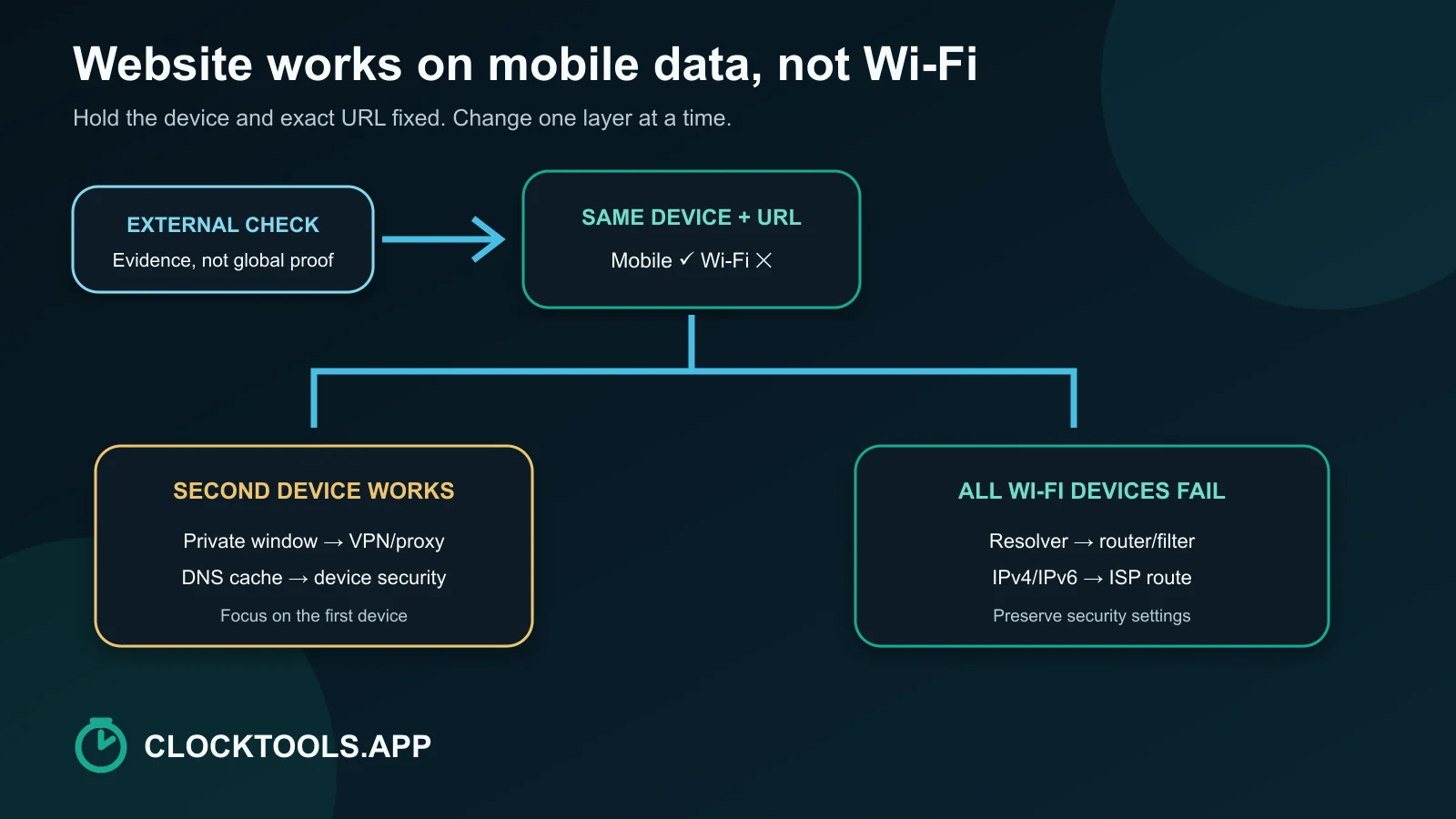
Follow the diagnosis tree in the accompanying diagram:
- Keep the device and exact URL fixed; switch only between Wi-Fi and mobile data.
- On Wi-Fi, try a private window or a second browser.
- Try another device on the same Wi-Fi.
- Temporarily pause a VPN or proxy only long enough to run one comparison, then restore it.
- Compare DNS behavior before replacing the resolver.
- Restart the router only after recording the evidence you would otherwise erase.
A private window can bypass some cached cookies and extensions, but it does not create a new ISP route. A second device on the same Wi-Fi is more useful for separating device state from network state. For a route-level clue, use Trace Route; for your egress identity, compare What Is My IP? on each network.
Could DNS be the difference?
Yes. Your Wi-Fi router may advertise the ISP's resolver while mobile data uses the carrier's resolver. One resolver can have a stale record, filtering policy, or failure that the other does not.
Start with observation, not permanent replacement. Note whether the external check resolves A or AAAA records. On the affected device, disconnect and reconnect to Wi-Fi, then retry. If your operating system provides a DNS cache flush, use its documented method. Only then compare with a reputable alternate resolver. Cloudflare documents its DNS-over-HTTPS JSON interface for an explicit resolver comparison.
Do not interpret “DNS works” as “the page must render.” DNS only maps the name. TLS, routing, server policy, and the application still have to succeed.
Could the router, VPN, or ISP be blocking the path?
Each can create exactly this split:
- A router can retain bad state, apply parental controls, prefer a broken IPv6 path, or block a category.
- A VPN, proxy, antivirus web shield, or enterprise profile can alter DNS and routing.
- An ISP can have a routing or resolver incident affecting one destination.
- A site can rate-limit or block the Wi-Fi network's public IP while accepting the mobile carrier IP.
Check scope before disabling protections. If every device fails only on one Wi-Fi network, focus on that network. If only one managed device fails, do not remove its security controls; ask the administrator. Microsoft's Windows Wi-Fi troubleshooting sequence and Google's Android connection troubleshooting both begin with basic connection checks and progressively isolate device and network state.
What should you reset, and in what order?
Use the least disruptive change first:
| Order | Action | What it tests |
|---|---|---|
| 1 | Reload exact URL in a private window | Browser cache, cookies, extensions |
| 2 | Reconnect Wi-Fi | Current lease and radio association |
| 3 | Test a second device | Device versus network scope |
| 4 | Pause VPN/proxy for one controlled test | Overlay route or filter |
| 5 | Flush documented DNS cache | Stale local name resolution |
| 6 | Restart router | Router state and advertised DNS |
| 7 | Compare resolver or contact ISP | Resolver and upstream route |
Avoid factory-resetting the router unless you have its configuration and credentials. Avoid leaving a firewall, VPN, or security product disabled merely because the page loaded once. If the page opens but looks incomplete, run the Website Rendering Test because static assets or scripts may be failing even when the main HTTP response succeeds.
When should you stop troubleshooting locally?
Stop and escalate when the evidence points outside your control: the external checker and mobile data both fail; trace results die consistently beyond your router; every device on one ISP fails while another network works; or the site shows an access-policy response tied to your public IP. Give the provider the exact URL, timestamps with timezone, external verdict, DNS result, affected network, and steps already tested. That evidence is far more useful than “the internet is broken.”
Frequently Asked Questions
Why does one website fail on Wi-Fi while other sites work?
That pattern can come from a DNS record, router or security filter, a broken IPv6 or ISP route, or a block tied to the Wi-Fi network's public IP. Test the exact URL externally, then compare another device on the same Wi-Fi before changing settings.
Why can DNS create a Wi-Fi-only website failure?
Yes. Mobile data and Wi-Fi often use different DNS resolvers. A stale, filtered, or failing Wi-Fi resolver can stop the domain from resolving even while the mobile resolver succeeds.
Should I change my DNS immediately?
No. First record the current result, reconnect Wi-Fi, test a second device, and flush the operating system's DNS cache using its documented method. Compare another reputable resolver only after isolating DNS as the likely layer.
Does an online website status check prove the site works everywhere?
No. It proves the site responded from the checker's external edge at that moment. Regional routing, ISP policy, authentication, and individual page failures can still differ.
Is it safe to turn off my VPN or firewall to test?
Use only a brief, controlled VPN or proxy comparison if policy allows, then restore it. Do not disable a firewall or managed security control permanently; ask the administrator when the device is managed.
What evidence should I send my ISP?
Send the exact URL, timestamps with timezone, external status and DNS results, affected devices, Wi-Fi versus mobile comparison, public IP if appropriate, and the point where a trace consistently stops.

About The Author
Vigneshwaran Vijayakumar
Founder, Developer and Publisher of ClockTools | Digital Marketing Manager | India
Vigneshwaran is an engineer with decades of technical experience, including professional work as a Digital Marketing Manager in Dubai. His work connects data analysis, search engine optimization, conversion-rate optimization, content systems, visual production, and applied AI and machine learning. At ClockTools, he turns that multidisciplinary experience into focused browser utilities and practical, source-aware guides.