A calmer start
Begin with common words and Accuracy Focus. A 25-word practice session gives you room to find the keys without a racing countdown.
Take a free typing test with two error modes, native-language passages and four appearance presets. Review your WPM, accuracy, mistakes and pace, then practise what needs work.
Choose a setup that suits you, type at a comfortable pace, then use the result to plan your next short practice session.
Pick the language, time or word count, and an error mode. Free-Flow lets you keep going; Accuracy Focus waits for the correct character.
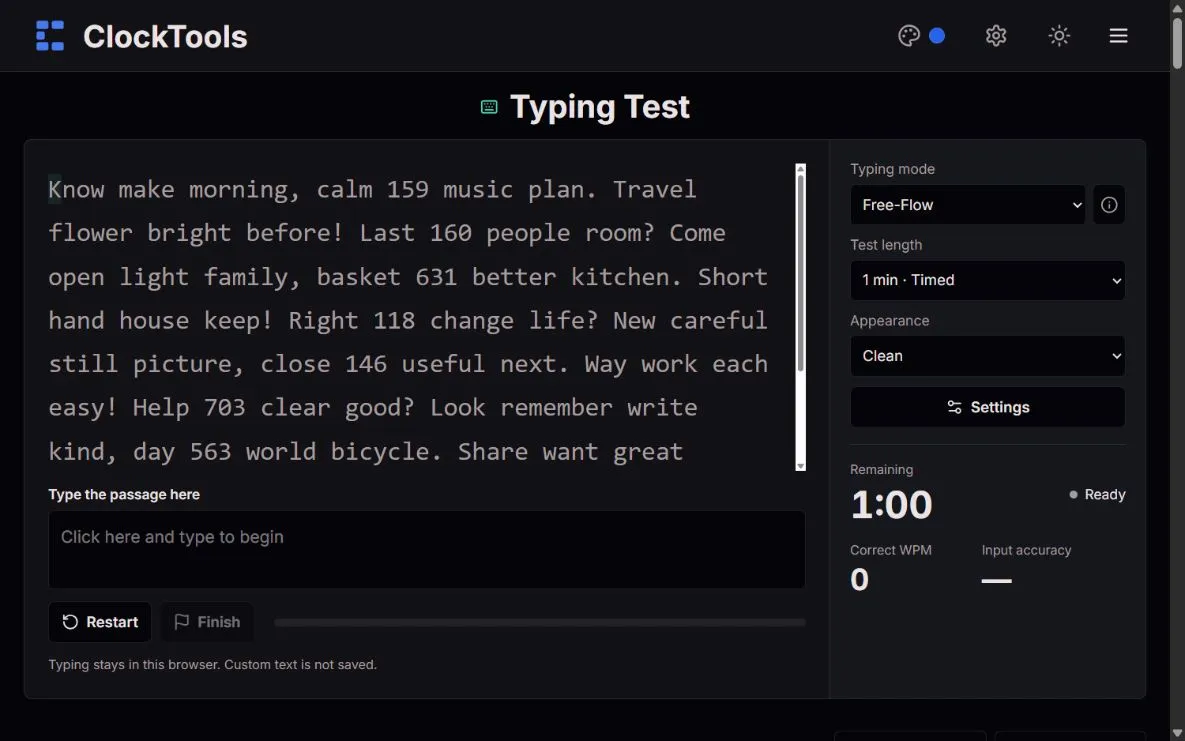
Click the typing field. The clock begins with your first committed character, including a wrong attempt. You can use Backspace to correct the end of your text.
Review correct WPM and input accuracy together. If the same words caused repeated mistakes, load a focused practice passage instead of chasing a higher score.
Begin with common words and Accuracy Focus. A 25-word practice session gives you room to find the keys without a racing countdown.
Practise an original work email with capitals and punctuation. Readable, accurate typing matters more than a burst of speed.
Try a customer-support passage. Keep names, sentence endings and the tone of a reply intact while you build a steady rhythm.
Use number-pad practice for repeated digits, or code for brackets and symbols. Numbers also show characters per minute; code is typed, never executed.
Set up your test before typing. Changing a test option prepares a fresh passage; the clock starts only with your first typed character. Opening Settings during a test interrupts that attempt, so make your choices first.
A mistake should not always stop your rhythm.
Free-Flow advances even when a character is wrong. The mismatch stays highlighted until you correct it with Backspace. Accuracy Focus rejects the wrong character and keeps the cursor in place. Both modes count wrong attempts, and the clock keeps running while you correct them. Pick the mode that helps your practice; compare scores only within the same mode.
Your appearance preset does not change the rules.
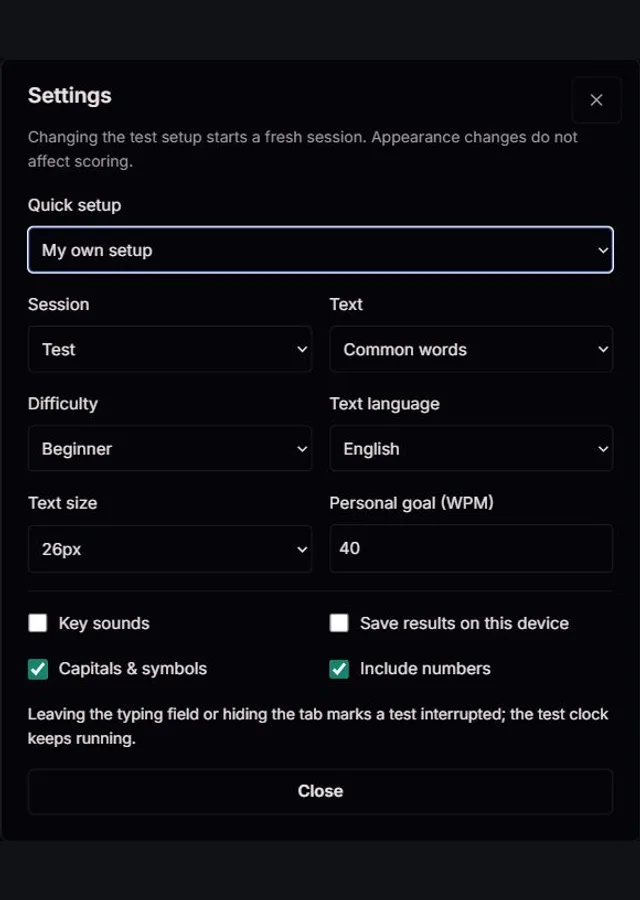
On a desktop, the wide left pane holds the passage, typing field, Restart, Finish and progress bar. Choose typing mode, test length and Appearance in the right sidebar, where you can also follow the remaining time or words, correct WPM and input accuracy. Clean is a quiet reading space; Vibrant adds a live goal meter; Playful uses rounded lettering and gentle key animations; Terminal presents an editor-style workspace with line numbers and character counts. These appearances do not change scoring. Light and dark themes remain available, and reduced motion disables animations and confetti. Open Settings for quick setups, text language, difficulty, content, test or practice sessions, text size, key sounds and optional local history. On narrow screens, the controls sit above the typing area.
The style changes, but the measurement does not: timed tests show elapsed time, while word-count tests show how much of the passage you have typed. Progress is not an accuracy score.
Illustrative progress previews, not measured test results.
Practice text should feel useful, not like filler.
Quick setups include a calmer start, office writing, support replies and developer practice. Four difficulty levels range from short school vocabulary to professional terminology, longer sentences, mixed punctuation, reference codes and decimal values. Difficulty changes the supplied text; custom text keeps the difficulty you provide. Prose is assembled from a curated bank of original sentence patterns and never cycles the same complete sentence within a session. If a finite passage ends before a timer, we show the actual duration and exclude it from full-length timed bests. Common-word drills use balanced shuffled rounds; targeted mistake drills deliberately repeat difficult words.
We show speed and mistakes separately so the result has context.
Correct WPM equals correctly matched visible characters divided by five, divided by elapsed minutes. Spaces and punctuation count. Raw WPM uses all committed character attempts, including wrong and retyped characters. Input accuracy is correct attempts divided by all attempts, multiplied by 100; Backspace never erases a past mistake. Matching is position-based, so skipping a character creates mismatches until you correct it. Unicode graphemes are normalized to NFC: an accented letter counts once, not once for the letter and again for the accent. The deadline is checked on every input and timer update, not inferred from animation frames.
| Correct WPM | Raw WPM | Input accuracy |
|---|---|---|
| (225 ÷ 5) ÷ 1 = 45 | (250 ÷ 5) ÷ 1 = 50 | (240 ÷ 250) × 100 = 96% |
Spaces, punctuation and accented characters each count as one visible character. Numbers are also reported in characters/min.
One short test is a snapshot, not a verdict on your ability.
The pace chart shows cumulative correct WPM at sampled points. Resolved mistakes are wrong attempts at positions you later typed correctly; remaining errors are mismatches still in the passage. The error map shows expected characters, not a claim about your keyboard hardware. Targeted practice needs at least two wrong attempts on a word in the current session. Local personal bests separate mode, language, content, punctuation, number settings and test length. Very short, custom, interrupted, assisted and unfinished sessions do not set a comparable best. This is a personal practice report, not an official typing certificate.
You do not need an account, and your typing is not sent to a scoring server.
We listen only to the tool's focused input. History is optional, limited to 50 summaries and stored on this device; neither custom passages nor complete keystroke logs are saved. Delete or export history at any time. Leaving the field or hiding the tab marks a test interrupted, but its clock keeps running. Practice pauses exclude paused time and stay labelled as practice. Paste and drop are blocked in the typing field; detectable replacement input is labelled assisted. Browser-only checks are not tamper-proof. Device sleep, autocorrection, keyboard layouts and touch input can affect results. Report a problem with your browser, language, mode and a non-sensitive example through Contact.
| Difficulty | Text |
|---|---|
| School starters | Familiar short words, initial capitals, single digits, commas and full stops. |
| Beginner | Everyday words, capitals, two- or three-digit numbers and simple punctuation. |
| Intermediate | Workplace vocabulary, uppercase words, times, reference codes, percentages and brackets. |
| Professional | Technical terms, mixed case, decimal values, long IDs and varied paired symbols. |
Common-word practice starts with a mix of lowercase letters, capitals, numbers and symbols. Difficulty changes how often numbers appear and how demanding the character patterns are, not just the word length. Switch off Capitals & symbols or Include numbers in Settings to simplify a word drill. Prose keeps its native spelling and punctuation and starts with a graded numbered example; Number pad and Code remain dedicated exercises. Matching is case-sensitive, so A and a are different keystrokes. New personal bests use a separate passage version rather than mixing these harder drills with earlier results.
Personal bests compare the same mode, language, difficulty, content and length; custom, assisted, interrupted, partial and early-ended timed sessions are excluded.
In Free-Flow, no: the cursor advances and the error is highlighted. In Accuracy Focus, the cursor waits for the correct character. Wrong attempts count in both modes.
Yes. Choose Timed and select one or five minutes, or another available duration. The timer starts on your first committed input, not when the page opens.
Accuracy includes every committed attempt. Correcting the passage repairs the visible text but does not erase the original wrong attempt.
Yes. There are eight text languages with native passages and a mobile input field. Accents and composition are supported. Touch keyboards and autocorrection are not directly comparable with physical-keyboard results.
No. You can save a personal result image or print a practice report to PDF. It is not accredited, identity-verified or valid as an employer or government examination certificate.
The tool scores in your browser and does not upload typing text. Optional local history stores only summaries, not custom passages. Other site services are described in the Privacy Policy.