Step 1
Choose the source
<button id="n">1</button>
#n { padding: 1rem; }
console.log(1);
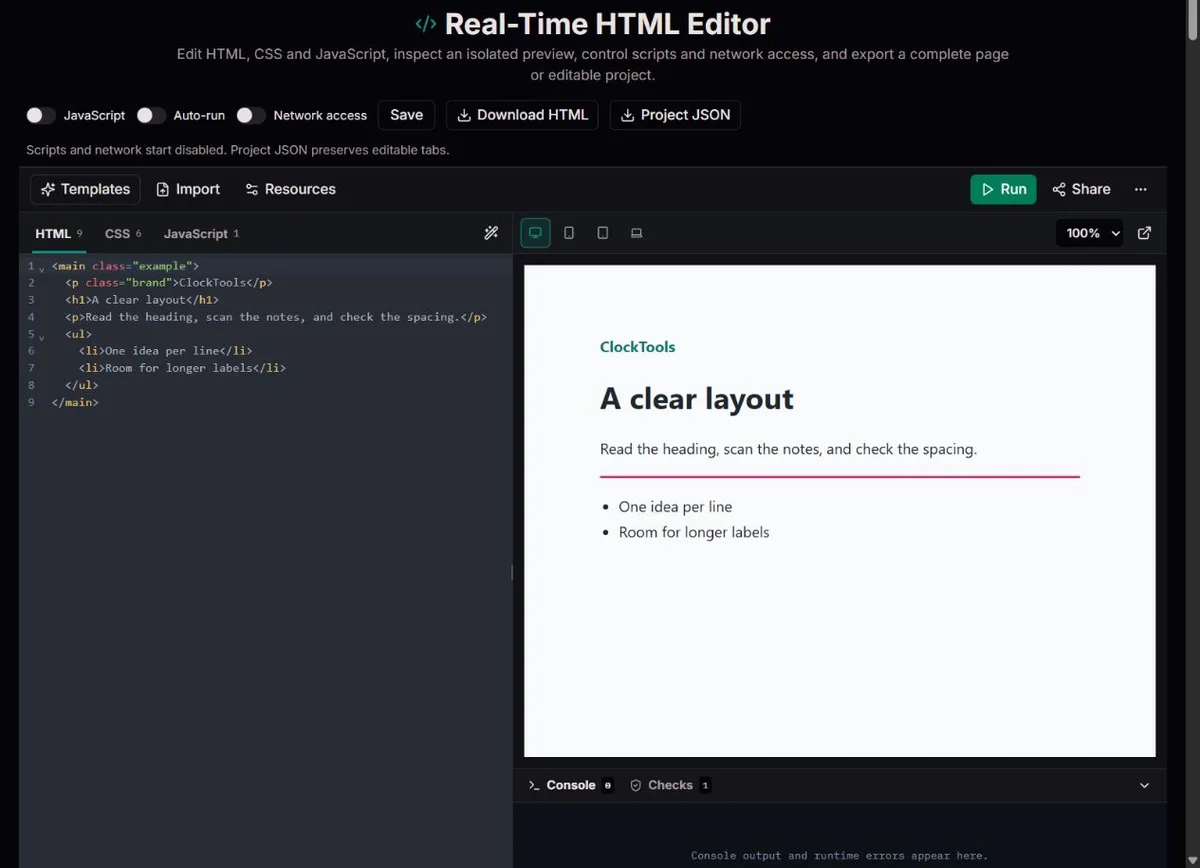
Use a template, paste a fragment, or import HTML or project JSON. Imported and shared code starts with scripts and network access disabled.
Start with a small example. Keep execution deliberate, check the rendered page, then preserve both the result and its editable source.
Start with a small example. Keep execution deliberate, check the rendered page, then preserve both the result and its editable source.
<button id="n">1</button>
#n { padding: 1rem; }
console.log(1);Use a template, paste a fragment, or import HTML or project JSON. Imported and shared code starts with scripts and network access disabled.
Select Run, compare preview widths and review Checks. Enable scripts or external requests only after inspecting code you trust.
Download complete HTML for a browser or Project JSON to retain separate tabs. A share link includes code, not just the visible page.
A support report says the third pricing column disappears on a phone. Copy only the relevant markup and CSS, keep scripts and network off, and compare 390 with 768 CSS pixels at 100% zoom. Replace short labels with the longest real wording. If the problem disappears after removing a parent rule, restore that rule alone to identify its effect. Save the reduced Project JSON with the failing width and expected behavior; a smaller reproduction is easier for a teammate to investigate.
Load JavaScript Counter and read the event listeners before enabling scripts. Click increase twice, decrease once, then reset: the expected values are 2, 1 and 0. Compare the displayed output with console messages. Changing the increment to 2 is a useful exercise because the learner can predict the consequence before running it. Each new Run recreates the document, so the in-memory count starts again; this is not saved application state.
Import a non-sensitive HTML file and inspect its head, labels and resource URLs with execution disabled. The Accessible Form template demonstrates native required-field and email validation, then displays a local status message when scripts are enabled. It does not deliver email. Use it to discuss the visible label, keyboard focus and error path, then document which real submission endpoint and server checks the final application still needs.
Example: a button at 390 pixels can wrap while the same CSS fits at 768. That proves a viewport difference, not compatibility with every phone.
Syntax highlighting, line numbers, bracket matching, folding and completion help you navigate a small source file. They do not establish that it works. Copy Active File copies only the selected tab; Copy Complete HTML combines the document. Local import accepts files within 2 MiB. A project depending on sibling images still needs accessible asset addresses, so importing an HTML file is not importing its whole folder.
Use the HTML tab for structure, the CSS tab for presentation, and the JavaScript tab for ordinary browser behavior. A fragment such as <main><h1>Notes</h1></main> is wrapped in a document. A complete HTML file keeps its existing head and body; tab CSS is added in the head and tab JavaScript near the end of the body. Existing inline styles and scripts remain in an imported file, so adding the same code again in another tab can duplicate behavior.
The editor, viewer and tester are different stages of the same workflow. Author or format source, inspect its rendered appearance, then exercise an interaction and review evidence. Run uses the current draft. With Auto-run off, the panel can still show an older run while you edit. Enable Auto-run for trusted layout experiments; leave it off while writing an incomplete handler or studying a side effect. Formatting applies to the active tab and improves readability, not correctness.
Choose a template for its smallest relevant pattern. Blank HTML5 and Semantic Article help with document structure; Responsive Landing, CSS Grid Dashboard and Flexbox Pricing isolate layout choices. Interactive Card and JavaScript Counter expose events; CSS Animation includes a reduced-motion rule. The Accessible Form connects visible labels and status feedback. The names describe starting examples, not quality certification after modification.
Fit follows the panel; the fixed modes use 390, 768 and 1280 CSS pixels. These are layout widths, not simulated phone models. Preview zoom changes how large the result looks in the workspace. It is useful for inspecting a wide page, but reducing zoom does not prove that its contents fit a narrow viewport. Start at 100%, compare all three modes, then use browser tools for widths immediately around your own breakpoint.
For a rule at 720 pixels, a three-column grid at 768 and a single column at 390 show two useful states but do not locate a failure at 721. Test long headings, an empty state and a validation message, not just a tidy template. A fixed-width child, an unbreakable URL or generous padding can cause overflow even when the outer grid is responsive. Remove one constraint at a time and rerun.
A width comparison answers a specific layout question. It does not test touch input, the on-screen keyboard, pixel density, device performance or another browser engine. The exported page should also be checked with keyboard navigation, text enlargement and the real devices your audience uses. Fullscreen gives the workspace more room; opening a separate preview makes inspection easier, but neither action publishes the page.
| Setting | Useful observation | Still needs testing |
|---|---|---|
| 390 CSS px | Narrow wrapping and column collapse | Touch and mobile browser behavior |
| 768 CSS px | Intermediate grid and navigation layout | Widths around custom breakpoints |
| 1280 CSS px | Wide layout and line length | Other browser engines |
| Preview zoom | A larger or smaller visual inspection | Reflow at a different viewport |
For a complete document, inspect <!doctype html>, its language, UTF-8 charset, responsive viewport and meaningful title. Set the language to the document’s text rather than retaining an English template value. Checks also flags heading-order jumps, unspecified button types and inline events. Clearing Console removes old messages without changing source; use it before one deliberate action to distinguish the current failure from earlier output.
When a button does nothing, first confirm that scripts are enabled and the current draft has been run. In Console, look for the earliest error after a fresh Run. A querySelector returning null often means the selector and element ID differ or the expected element is absent. Log a small value near the failing branch rather than printing an entire confidential object. The panel captures common logs, errors and rejected promises, with bounded output; it is not a breakpoint debugger or a complete execution trace.
Checks examines the composed document for common issues: missing document signals, duplicate IDs, absent image alt attributes, unlabeled form controls, unnamed actions and suspicious links. Treat an error as a reason to inspect its context and a suggestion as a design question. An alt="" can be correct for decoration, whereas descriptive alt text should explain an informative image. Several H1 elements are not automatically invalid merely because the checker suggests one clear page heading.
The W3C guidance on form labels explains why a visible label and an associated control matter beyond appearance. A placeholder that vanishes while typing is not an equivalent replacement. After fixing a warning, tab through the form and inspect focus and feedback. Passing these checks does not establish contrast, meaningful reading order, assistive-technology usability or full HTML conformance; use a formal validator and task-based accessibility review for that evidence.
Check network weight before polishing the layout. For trusted external resources, open the browser’s full Network tools before reloading the example and compare a load without cached files with a repeat load. Inspect failed requests, transferred bytes, the largest images and libraries, and the request that starts each dependency. The Chrome Network reference distinguishes transferred size from the larger uncompressed resource size. A small HTML file can still depend on megabytes of images or scripts. Remove an unnecessary resource or resize an oversized image, then repeat the same comparison; a fast cached preview alone does not establish performance on a slower connection.
Check when content appears and whether it moves. Render-blocking CSS guidance explains why a required stylesheet can delay the first styled result; download size is not the only cost. Use the browser’s Performance tools to inspect loading and long JavaScript work, rather than treating the workspace Console or Checks as a profiler. If a heading jumps when an image, font or embed arrives, follow the layout-shift guidance: reserve the intended space with accurate width/height or aspect-ratio, then test again while loading. Keep the dependencies and test conditions in the handoff. This reduced experiment cannot establish the final host’s caching, server responses or every user’s device performance.
Resources accepts HTTP or HTTPS URLs for stylesheets and browser-ready scripts, plus a base URL for relative paths. Put one resource URL per line. A base such as https://example.org/demo/ makes images/logo.png resolve below that directory; /images/logo.png instead starts at the origin root. The HTML Standard describes base URL resolution. A base sets an address rule, not an upload directory, and cannot make files on your computer available online.
If an imported page loses its font or image, inspect the URL before rewriting CSS. It may be relative to a different directory, unavailable without login, blocked by network consent or subject to a remote host restriction. Enabling network access permits attempts, not successful responses. Script access is a separate choice: loading external JavaScript requires both the relevant resource and permission to execute.
A CDN file that is ready to run in a browser can be useful for a focused example. An npm package name, JSX, TypeScript, Sass or a server-side PHP file is not automatically executable here. There is no package install, compilation pipeline, database or private API proxy. Move framework or authenticated application work into a suitable project environment, and test resources under the final site’s actual policies.
The WHATWG sandbox rules describe an isolated iframe origin unless same-origin permission is granted. This preview does not grant that permission. Script execution and network access start disabled and are controlled separately; importing a project also turns Auto-run off. For a static layout review, keep both permissions off. For a trusted counter, enable scripts while leaving external requests off.
Isolation is a boundary, not a judgment about the code. A loop can still consume resources, a script can draw a misleading login form, and remote resources can send requests to their hosts when allowed. Do not enter credentials into preview content. The bounded console reduces ordinary message floods but cannot promise that hostile code will never freeze the tab.
The separate preview tab retains an iframe boundary and the selected permissions. Complete HTML export is different: it includes the project’s code and resources without those workspace preview restrictions. A downloaded document may execute scripts when opened directly. Inspect it before opening or sending it, especially if it came from an unfamiliar source.
Project JSON preserves the title, separate HTML, CSS and JavaScript tabs, base URL and resource lists. Complete HTML is the combined browser document; it does not package every remote image or library for offline use. Importing that HTML places the full source in the HTML tab rather than reconstructing the original tab split. Keep JSON when future editing matters and HTML when a reviewer needs to open the result.
Normal HTML is the better debugging handoff. Minified HTML removes comments and compresses supported source; compare the result after minification and keep an unminified original. Browser drafts are local to the profile, not a cloud backup or version history. Storage can be blocked or cleared. If a damaged draft is reported, avoid resetting until you have preserved what you need; deliberate save or reset can replace the stored draft.
Share creates a compressed project in the URL fragment, including source and resource settings. It is not an access-controlled secret or a hosted production page. Anyone receiving the full link can inspect the project, and a copied link may be forwarded. Large projects can exceed the share limit; download JSON instead. Import accepts HTML/HTM or supported project JSON within the file limit, not an entire folder of assets.
CERN’s account of the Web’s beginnings traces it to Tim Berners-Lee’s work in 1989 on sharing linked information. That document-first idea remains useful in a playground: headings describe relationships, links lead somewhere meaningful, and forms collect information for a purpose. A visually attractive collection of generic boxes can still be a poor document.
For a documentation example, decide what a reader should discover before choosing a layout template. Prefer a real button for an action and a link for navigation; explain a table’s columns instead of relying only on color. These choices make the small example easier to understand and more portable when it leaves the playground.
A sensible handoff records the source, last tested width, browser, permissions and expected outcome. It distinguishes “the counter responded in this preview” from “the application is ready to host.” That distinction preserves the value of the quick experiment without asking it to prove server behavior, production security or every device combination.
Methodology: The tool combines markup, tab CSS and tab JavaScript. Checks flag common document issues, not full HTML conformance. The iframe remains isolated whether execution is manual or automatic.
Limits: External resources can fail or disclose requests to their hosts. Browser storage may be denied; a damaged draft is preserved until you deliberately save or reset. Keep a downloaded backup.
Corrections: Reduce a failure to the smallest source, record the browser and preview width, and include expected versus observed behavior. Remove secrets before sending a reproduction.
Auto-run starts off. Select Run to apply the current draft, or enable Auto-run for a trusted example. A template or import can refresh the static preview without enabling scripts. If appearance still differs, check which tab contains the rule and whether an existing inline style overrides it.
A run creates a new preview document. Variables and DOM changes belong to that document and are recreated from the source, so the counter starts again. Saving the project saves source, not the current runtime state. Test persistence in the final application separately.
The base URL only resolves relative resources. It does not fetch a remote website or reproduce its server, account session or APIs. Import an authorized HTML sample and supply accessible asset URLs when useful; reduce an application defect to a standalone case instead of copying a private site.
The remote service may require credentials, reject an opaque origin, be unavailable or enforce browser policies. The network switch does not bypass CORS or authentication. Inspect the failing URL and full browser developer tools; do not paste secret tokens to force a demonstration to work.
No. The switch limits preview execution, and the HTML source may still contain script tags or event attributes. Complete HTML export preserves project code and does not inherit the preview’s execution restrictions. Review the complete source before opening or sharing the file.
Send Project JSON when the recipient should retain separate tabs and resource settings. Send unminified HTML when they need a browser document. Explain any remote dependencies and include a minimal expected result; neither file is an asset archive or deployment package.
The active tab’s parser must understand its syntax. Check unmatched braces, malformed attributes and whether framework syntax was pasted into an ordinary JavaScript tab. Formatting is not compilation. Preserve the draft, fix the earliest syntax issue and run again; a formatted file can still contain a logic error.
No. Use them to find common omissions, then check keyboard operation, text enlargement, useful alternative text and real interaction states. Validate the exported document and test the supported browsers and submission server. A clean Checks panel is one piece of evidence, not an accessibility or security certificate.
A valid shared project opens without automatically replacing the existing saved draft. Deliberately saving or resetting can replace it. Download a copy before doing that if the private draft matters. Malformed shared data should not be treated as a recoverable backup.
It can help inspect markup and a browser layout, but an email client may strip styles, block images or handle tables differently. Test with the actual mail clients and sending system. A good browser preview is not evidence that the message will render or be delivered consistently.