Calendar Tools
How Do You Print Your Own Calendar Without Clipping It?
A print-preflight workflow for matching calendar layout to paper, checking margins, and fixing clipped or tiny output.
By Vigneshwaran Vijayakumar, Developer and Publisher | | Reviewed under the ClockTools editorial policy
Table of contents
To print your own calendar without clipped edges, match the calendar layout to the paper, choose the correct orientation, leave usable margins, select a fit-to-page scale when necessary, and inspect every page in print preview. The safest workflow is to configure the ClockTools printable calendar, save a PDF, check its page count and edges, and print one proof sheet before producing the full set.
Which calendar layout fits the job?
Start with how the paper will be used. A one-page yearly calendar is a map: it shows relationships across months but leaves little room to write. A monthly calendar is a worksheet: each date can carry appointments or notes. Quarterly and half-year views sit between those extremes.
| Planning job | Best starting layout | Likely orientation | Main tradeoff |
|---|---|---|---|
| See all twelve months | Yearly | Landscape | Small date cells |
| Write daily notes | Monthly | Portrait | More pages |
| Track a 90-day project | Quarterly | Landscape | Moderate detail |
| Plan two school terms | Half Year | Landscape | Less writing space than monthly |
Do not solve a readability problem only by increasing printer scale. If twelve months are too small, choosing Monthly is usually more effective than enlarging a dense yearly sheet until its edges no longer fit.
What should you check before opening Print?
Use the preview as a five-gate inspection.
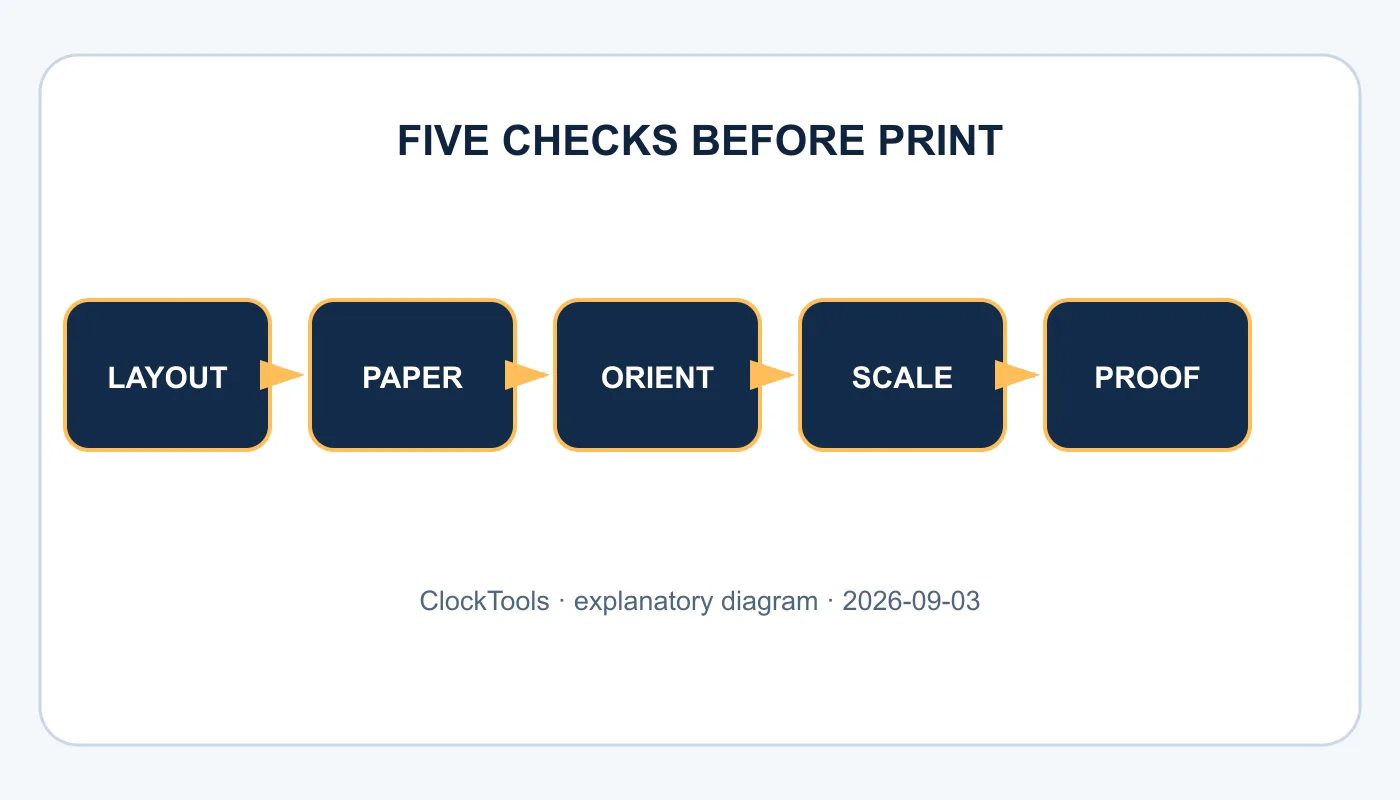
- Confirm the year and visible month.
- Choose Yearly, Monthly, Quarterly, or Half Year for the planning job.
- Set Sunday or Monday week start and enable only the holidays, week numbers, notes, and weekend emphasis you need.
- Check whether the grid remains readable at the intended paper orientation.
- Open Print or PDF and verify paper size, scale, margins, page count, and edge clearance.
I reproduced the first three gates on the live tool. Switching to Monthly reduced the preview to one large month. Changing the week start to Monday reordered the columns, and enabling Week Numbers added a Wk column. Notes Space changed the intended writing area without altering the selected year.
Those controls affect information density before the printer driver becomes involved. Make them deliberate first; printer scaling is the last adjustment, not the design tool.
How do paper size and orientation work together?
Paper size defines the physical sheet, while orientation decides which edge is treated as the width. A4 and US Letter are close but not identical. If the document expects one and the print dialog uses the other, a layout that looked safe can be rescaled or clipped.
The W3C paged-media specification distinguishes the page box from the physical sheet and notes that printers can have an unprintable region near the edges. That device-dependent boundary is why a zero-margin design is risky unless the printer explicitly supports borderless output.
Use landscape for wide year, quarter, and half-year grids. Start with portrait for a single month when writing space matters. Then confirm the preview rather than treating this as an absolute rule: a printer’s margins, paper tray, duplex mode, and browser can change the available area.
Why does a calendar get clipped or shrink?
Diagnose the visible symptom instead of trying random percentages.
| Symptom | Likely cause | First correction |
|---|---|---|
| Right or bottom edge is missing | Actual size exceeds printable area | Choose Fit or Shrink oversized pages |
| Calendar is unexpectedly tiny | Dense layout or duplicate scaling | Use a larger layout or return scale toward 100% |
| Page count is higher than expected | Monthly/quarterly layout or paper mismatch | Confirm layout, paper, and orientation |
| Colors or weekend shading disappear | Background graphics disabled or Ink Saver enabled | Print a proof with the intended color setting |
| Blank extra page appears | Margins or browser headers push content over | Disable browser headers/footers and recheck preview |
Adobe’s print-scaling guidance explains the practical difference: Fit scales a page to the printable area, while Actual size does not scale and can crop content that exceeds the paper. Prefer Fit for the first proof when clipping is the problem.
Should you print directly or save a PDF?
Saving a PDF creates a stable checkpoint between the browser layout and the physical printer. It lets you inspect the page count, zoom into edges, send the same document to another device, and reprint without reconstructing every calendar setting.
Direct printing is reasonable when the preview is simple and you need one sheet. PDF-first is better when you are printing multiple months, using another printer, or troubleshooting. The MDN printing guide explains that web pages can apply print-specific styles and page rules, so the printed result may intentionally differ from the screen view.
Treat the PDF as a proof, not as evidence that every printer will mark the same edge. The physical device still has paper, tray, scaling, duplex, and non-printable-area settings.
How can you reduce ink without losing meaning?
Use Ink Saver before removing information manually. A calendar needs contrast for date numbers, grid boundaries, annotations, and any holiday labels you chose. Decorative backgrounds can disappear; structural distinctions should remain.
Print in grayscale only after checking that weekend or holiday meaning is not carried by color alone. If it is, retain labels or patterns that survive monochrome output. Disable unused holidays and week numbers when they compete with writing room, but keep them when the shared convention matters to the team.
For planning notes that do not belong on the shared page, keep a working draft in the online notepad and transfer only confirmed items. This keeps the calendar readable and avoids reprinting after every tentative change.
What should the proof sheet confirm?
Print one representative page at normal quality. Check the four corners, the last row of dates, the weekday headers, the smallest labels, and a handwritten note made with the pen you will actually use. Confirm that duplex printing has not flipped the reverse side unexpectedly.
Then compare the physical sheet with the PDF preview. If only the paper is clipped, investigate printer paper size, margins, and scaling. If both are wrong, return to the calendar layout. Change one variable at a time and label the successful settings for reuse.
The final proof should answer three questions: Can every date be read at arm’s length? Is there enough room for the intended notes? Does every page stay inside the printable area? Once all three are yes, print the remaining pages.
Frequently Asked Questions
Should a yearly calendar print in portrait or landscape?
Landscape usually gives twelve month grids more horizontal room. Portrait is often better for a large single month with notes, but preview the actual paper size before printing.
Why is the edge of my calendar cut off?
The page may exceed the printer’s printable area, the paper size may not match the document, or Actual size may be selected. Try the correct paper, Fit or Shrink oversized pages, and normal margins.
Can I save the calendar as a PDF first?
Yes. ClockTools can open the browser print workflow for PDF saving. A saved PDF is useful for checking page count and layout before committing paper and ink.
Should I enable background graphics?
Only when the color or shading carries meaning. The ClockTools Ink Saver option is a better starting point when legibility matters more than decoration.
How do I make the date boxes larger?
Use the Monthly layout instead of fitting all twelve months on one page, reduce optional content, and choose an orientation that gives the grid more usable space.
Do week numbers require Monday as the first day?
ClockTools lets you change week start and toggle week numbers separately. Choose the convention expected by the people who will use the printout.

About The Author
Vigneshwaran Vijayakumar
Founder, Developer and Publisher of ClockTools | Digital Marketing Manager | India
Vigneshwaran is an engineer with decades of technical experience, including professional work as a Digital Marketing Manager in Dubai. His work connects data analysis, search engine optimization, conversion-rate optimization, content systems, visual production, and applied AI and machine learning. At ClockTools, he turns that multidisciplinary experience into focused browser utilities and practical, source-aware guides.