Step 1
Choose text or an image
A → /\
   /__\
  /    \
Enter a short banner or select a local image. Text fonts load when needed; images are decoded in the browser.
Create text banners or local-image character art with font, shading and dithering controls, then export TXT, Markdown, ANSI, HTML or PNG.
Create text banners or local-image character art with font, shading and dithering controls, then export TXT, Markdown, ANSI, HTML or PNG.
A → /\ /__\ / \
Enter a short banner or select a local image. Text fonts load when needed; images are decoded in the browser.
@ # * + : .
██████
▓▓▓▓▓▓
▒▒▒▒▒▒
░░░░░░
Set width and layout for text. For images, tune aspect ratio, ramp and contrast before trying dithering or edges.
@ # * + : .
@@@@@@
@@..@@
@@..@@
@@@@@@
Use TXT or a fenced Markdown block for text, ANSI for supporting terminals, HTML for color or PNG for a fixed image.
For a narrow console, start with the CLI preset: READY, Standard, 80 columns and fitted layout. Replace the text, keep left alignment, and check actual maximum columns. Use Copy Markdown for a README and raw TXT for a program's text resource. A striking 100-column README preset can wrap in a smaller console; shorten the phrase or choose Small rather than merely shrinking preview zoom.
Use a clearly separated local subject and start with Logo: 72 columns, Compact ramp, Edges, contrast 42 and no dithering. Check whether the outline remains recognizable, then compare Shaded if interior tone matters. Crop unnecessary background before selecting the file; there is no in-tool crop control. Export PNG when the destination cannot preserve a character grid.
Keep the same non-sensitive image and compare Shaded with no dithering against Floyd-Steinberg on a short ramp. Look for smooth tonal regions becoming a patterned approximation. Change only one setting at a time so the effect is visible. This demonstrates sampling and quantization, not image reconstruction or an objective quality score; the final font changes how dense each symbol appears.
@ # * + : .
@@@@@@
@@..@@
@@..@@
@@@@@@
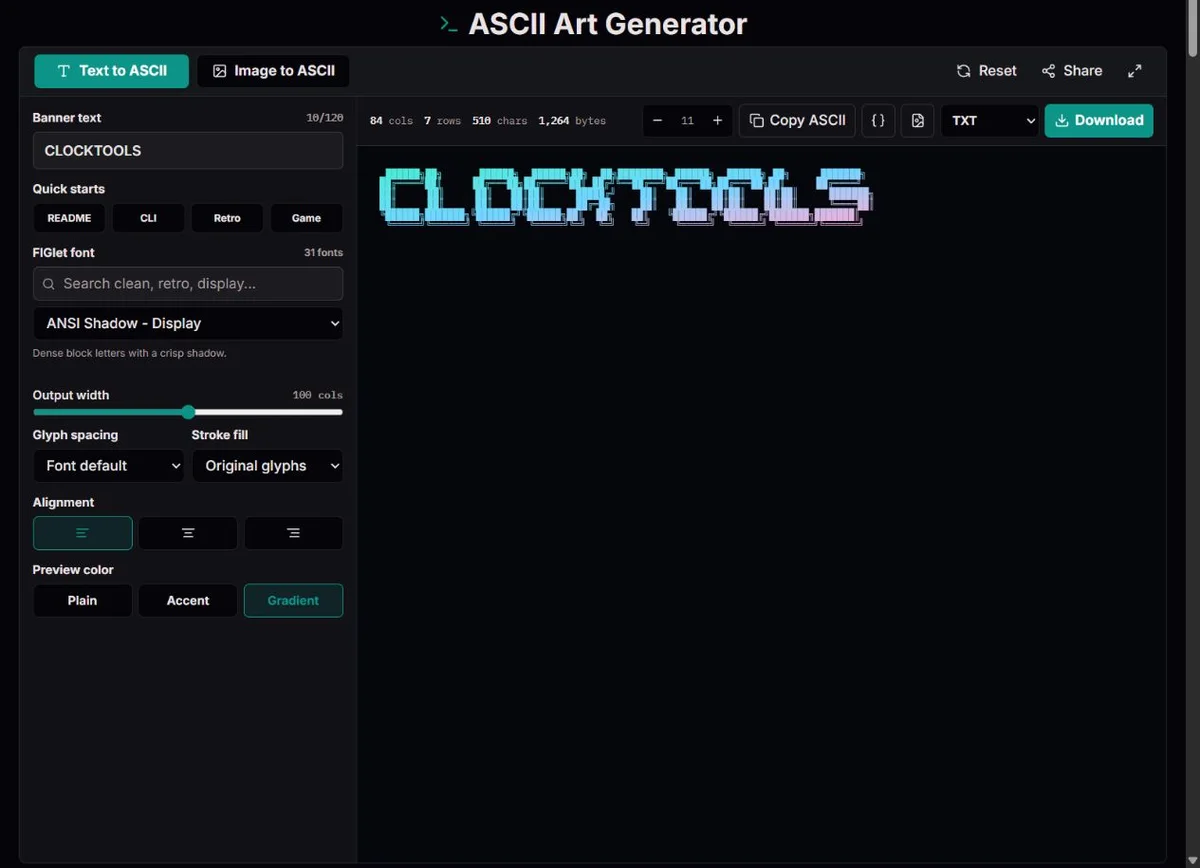
RFC 20, published in October 1969, documents a seven-bit ASCII interchange code. A character picture arranges printable symbols on a grid; its alignment relies on spaces and consistent character cells rather than pixels.
The name ASCII art is now also used for banners containing block characters. Those symbols are Unicode, not seven-bit ASCII. TXT export uses UTF-8; choose a basic-symbol ramp when a destination expects a restricted character set.
Emoji, combining marks and wide characters do not always occupy one cell. The preview is not proof that a terminal, chat application or proportional-font document will preserve the same geometry.
The FIGfont format specification describes font rows and layout rules for fitting character-based letters together. Kerning removes some gaps; smushing can merge compatible boundaries. A selected font can exceed a requested width for an indivisible glyph.
Image mode samples a resized grid, estimates brightness and selects a ramp character. Dithering distributes quantization error; edge mode emphasizes local gradients instead of reproducing every shade. Transparent pixels become spaces.
Font default follows the font's preferred arrangement. Full width preserves glyph boxes; Fitted closes unnecessary gaps. Controlled smushing overlaps compatible boundaries under font rules, while Universal smushing permits more aggressive overlap. A narrower result is not always more legible: inspect letters such as M, W and repeated vertical strokes at the destination size. Vertical layout is not an exposed setting here.
Stroke fill preserves the font's original characters or replaces every non-space stroke with a block, hash, at sign or star. Replacement can remove fine detail that depended on slashes and punctuation. A solid block is Unicode, not strict ASCII. Plain, Accent and Gradient preview colors are separate from raw text; choosing Gradient does not add colored terminal escapes to a TXT file. Preserve original fill when portability and recognizable strokes matter most.
For a screenshot or an image already open in another application, copy the actual image rather than its filename, address or surrounding text. Switch to Image to ASCII, then press Paste beside the image chooser. The tool looks for an image format in the clipboard and loads the first image it finds; it does not fetch an image from a copied URL or assemble several clipboard pictures. Wait for the source and converted preview to update before judging the result or changing its settings.
Keep the tool's tab active while pasting. Your browser may ask for clipboard permission or a paste confirmation; approve only when you intend to supply that image. Clipboard access is subject to browser restrictions, described in the W3C draft's clipboard-access rules, and a working text clipboard does not prove image access is available. Inspect a screenshot for private details before copying it. Pasted images enter the same browser decoding and conversion workflow as selected local files; Paste is not a sharing or image-upload command.
If the message says no image was found, copy the image itself again: an image address, a file path or copied ASCII characters are not an image payload. If clipboard image access is unavailable, permission may have been denied or the browser may not offer the required API. You can instead save the image locally, use the file chooser or drag the file into the image area without granting clipboard access. The same 15 MB limit and browser decoding requirements apply. For an oversized or undecodable image, try a smaller PNG, JPEG or WebP. A failed clipboard read does not replace the current source, so an older sample or result may remain visible.
Copy as PNG works in the opposite direction: it renders the current ASCII result as a picture and writes that picture to the clipboard, not the original photograph. Ordinary Copy and Copy Markdown write characters, so pasting those back into image mode cannot recreate the source image. If PNG clipboard writing is blocked, select PNG in the export menu and use Download to save a file without writing to the clipboard. If PNG rendering itself fails, TXT or HTML can preserve the character result instead. Keep the original image and a chosen export separately; the clipboard is a transfer point, not a saved project.
Select or drop a local image below the 15 MB file limit. The browser must be able to decode it; PNG, JPEG and WebP are practical starting points. Image width controls the sampled column count up to 160. More columns preserve more structure but require more horizontal room. A busy photo can remain unclear at high resolution because the background competes with the subject. Prepare the crop in an image editor first.
Cell aspect compensates for characters that are taller than they are wide. Rows are estimated from source height divided by source width, multiplied by columns and cell aspect. For a square 600 × 600 source, 80 columns and aspect 0.5 produce 40 sampled rows: 600 / 600 × 80 × 0.5 = 40. That is a grid calculation, not a guarantee of the same physical shape in every font. The 512-row cap can compress very tall sources; crop the subject or reduce columns if this happens. If a face stretches, adjust aspect before contrast or dithering.
Start with Shaded, brightness 0, gamma 1 and a modest contrast, then adjust one control at a time. Brightness shifts the whole scale; contrast separates light and dark around a midpoint. In this implementation gamma above 1 brightens intermediate values and below 1 darkens them. These are artistic controls over a weighted RGB brightness estimate, not calibrated photometric measurements. Strong settings can erase detail as readily as reveal it.
Edges emphasizes local horizontal and vertical changes with Sobel filters; it does not recognize objects or trace editable vectors. Hybrid combines tone with those boundaries. Edge strength matters only in the modes that use edges. Invert reverses tonal mapping. Almost-transparent pixels become spaces, while partially transparent pixels are blended toward white for brightness calculation. Selecting a dark preview background does not recompute that alpha blend.
Color uses original sampled RGB values for each character, while tone controls choose the characters. It can help recognize an object, but is not a recoloring control. If a dark image appears faint on a dark background, inspect Light background, Invert and monochrome separately. The best choice depends on foreground, background and ramp density; do not assume that changing background alone repairs the conversion.
Classic and Typewriter use printable symbols; Compact favors strong shapes; Detailed offers many density steps. Blocks uses Unicode shade characters, and Binary offers a deliberate code-like texture rather than the finest tonal reproduction. A custom ramp runs from dark/dense to light/sparse. Control characters and duplicates are removed and a final space is ensured. Equal density steps are assumed; no automatic measurement of your font's ink coverage occurs.
Begin with no dithering to see the underlying shape. Floyd-Steinberg distributes quantization error to neighboring cells and can suggest smoother gradients with a short ramp, at the cost of texture. Atkinson distributes only part of the error and can look more graphic. For small logos, no dithering often keeps boundaries clearer. For portraits, compare the detailed ramp and Floyd-Steinberg without declaring either universally best.
The Portrait, Logo, Terminal and Comic presets set width, ramp, image mode, contrast and dithering. They do not reset brightness, gamma, aspect, inversion, color or background. A preset applied after experimentation can therefore look different from a fresh setup. Reset restores defaults and the sample image, not your chosen local image; note the settings or export first when you want to keep the work.
Use a monospace destination that preserves spaces and line breaks. CommonMark's fenced-code-block specification explains why a fenced block preserves literal code-like content; Copy Markdown uses a sufficiently long fence even when the artwork contains backticks. Fences cannot prevent a narrow display from scrolling or a chat application from wrapping. Keep a normal text heading or image alternative where readers need the actual words, since a screen reader may announce the constituent symbols rather than the banner.
Columns counts code points in the longest row, not measured terminal cells. Characters counts UTF-16 units, and Bytes measures UTF-8. Wide symbols, combining marks and emoji can break the expected one-symbol/one-cell geometry. TXT is UTF-8 even when called ASCII art. Choose original basic-symbol fill or a basic ramp when a restricted destination cannot display blocks.
| Format | Keeps | Trade-off |
|---|---|---|
| TXT / Markdown | Characters and grid spaces | No color; Markdown adds a literal-text fence. |
| ANSI | Image color when Color is enabled | 24-bit foreground escapes need a compatible terminal; otherwise output is raw text. |
| HTML | Preformatted text; sampled image color if enabled | Plain banner HTML does not preserve the preview gradient. |
| PNG | Rendered appearance, colors and chosen background | No selectable art text; dimensions and pixel area are limited. |
Text uses font-defined glyphs and layout rules. Images use browser-decoded pixels, weighted RGB brightness, contrast and gamma adjustments, optional Sobel edges and dithering. The output reports rows, maximum code-point columns, string units and UTF-8 bytes.
Font chunks, canvas, clipboard images and full screen may be unavailable. PNG dimensions and pixel area are limited; TXT remains an alternative. Local image share links do not contain the image. Banner links include text and settings, so do not share sensitive text.
Try Standard when a font fails, reduce dimensions when PNG export fails, and check a monospace destination when alignment changes. Report settings and a non-sensitive small image or banner rather than uploading private material.
No image-conversion API is used. Local files are decoded and sampled in the browser. A shared generator link does not include them.
Change character aspect for the destination font, keep a monospace layout, and avoid wide or combining ramp symbols.
No. Font coverage varies. Try a different font or basic Latin text if a glyph is missing.
Image presets change only width, ramp, mode, contrast and dithering. Your existing brightness, gamma, aspect, inversion, color and background remain. Review those settings before comparing presets. Reset also replaces the source with the sample, so export or keep the original file before resetting a local-image conversion.
Width guides layout rather than cropping every glyph. A font may contain a glyph wider than the target or a phrase that cannot break usefully. Check actual Columns, try Small or Fitted, shorten the wording and test in the destination. Reducing preview zoom does not reduce text columns.
TXT and Markdown contain ordinary characters, not preview colors. Colored ANSI and per-character HTML are for image mode with Color enabled. Banner Accent or Gradient styling is preserved in PNG, not ordinary banner HTML. Choose the format for the real destination rather than assuming every export matches the preview.
Try Standard or retry for a font problem. For decoding, choose a small local PNG, JPEG or WebP instead of a damaged or unsupported image. For PNG, reduce columns or zoom: export is limited to 8192 pixels per dimension and 16 million pixels. TXT remains an alternative when canvas or image clipboard access is unavailable.
A text-banner link includes text, font, width, alignment, layout, fill and preview color. It does not include a local image or its conversion settings. Banner words become visible in the URL and to recipients, so avoid confidential text. Keep image results as exports; refreshing does not restore the selected local image.